

How to set up payment reminders
Stop chasing, start getting paid
Payment reminders
Chasing money is awkward. You've done the work, sent the invoice, and now you're sitting there wondering if it's too soon to follow up. Or too late. Or whether a WhatsApp at 9pm is weird.
Payment reminders take the awkward out. Turn them on, and stub sends a friendly nudge to your customer when their invoice is overdue — so you don't have to.
How it works
Once you've set a reminder schedule on an invoice, stub checks your unpaid invoices every morning. If an invoice has passed its due date by the number of days you chose in the dropdown, stub sends a reminder email to your customer - automatically.
The email includes:
- Your business name and branding (not stub's - your customer sees you, not us)
- The invoice number and amount due
- The original due date and how many days overdue it is
- A link that takes them to the invoice view page
It's friendly, not aggressive. No "FINAL NOTICE" energy. Just a clear, professional nudge.
Where to find it
Payment reminders live inside each invoice - right where you edit it.
- Go to Sales in the sidebar.
- Open an existing invoice (or create a new one).
- On the left-hand side of the invoice editor, you'll see the Settings panel -that's where your toggles for Purchase Order, Discount, Deposit, Installments, and Bank account live.
- Below those settings and the currency selector, you'll see two drop downs: Repeat and Payment reminders. Both default to None.
- Tap the Payment reminders dropdown.
Set your reminder schedule
When you tap the dropdown, you'll see your frequency options:
- None (default - no reminders)
- Daily
- Weekly
- Monthly
- Yearly
Pick one, and stub opens up the details for you to customise:
- Every [X] weeks/days/months - Set how often. Every 1 week? Every 2 weeks? You decide.
- On (for weekly) - Pick which day(s) of the week the reminder goes out. Monday? Tuesday and Friday? Tick the ones you want.
- Time - Choose the hour and minute. Default is 08:00.
- Ends after [X] reminders - Set a cap so stub doesn't keep chasing forever. For example, 3 reminders means stub nudges three times and then stops.
Hit Update to save your schedule.
Example: You run a design studio and your clients usually pay within two weeks. Set it to Weekly, every 1 week, on Monday, ending after 3 reminders. That's three gentle Monday morning nudges.
Example: You supply materials to construction companies and payment cycles are longer. Set it to Monthly, every 1 month, ending after 3 reminders. A nudge once a month for three months.
💡 This is a per-invoice setting - you set it up on each invoice individually. So if you've got a client you'd rather chase personally (we get it), leave it on None for that one and set it up on the rest.
Send a reminder manually
Don't want to wait for the scheduled nudge? You can send a payment reminder yourself at any time:
- Open the invoice.
- Tap the three dots (⋮) in the top-right corner.
- Select Send payment reminder.
stub fires off the reminder email right there and then. Handy for that one client who needs an extra nudge.
What your customer sees
The email your customer gets looks something like this:
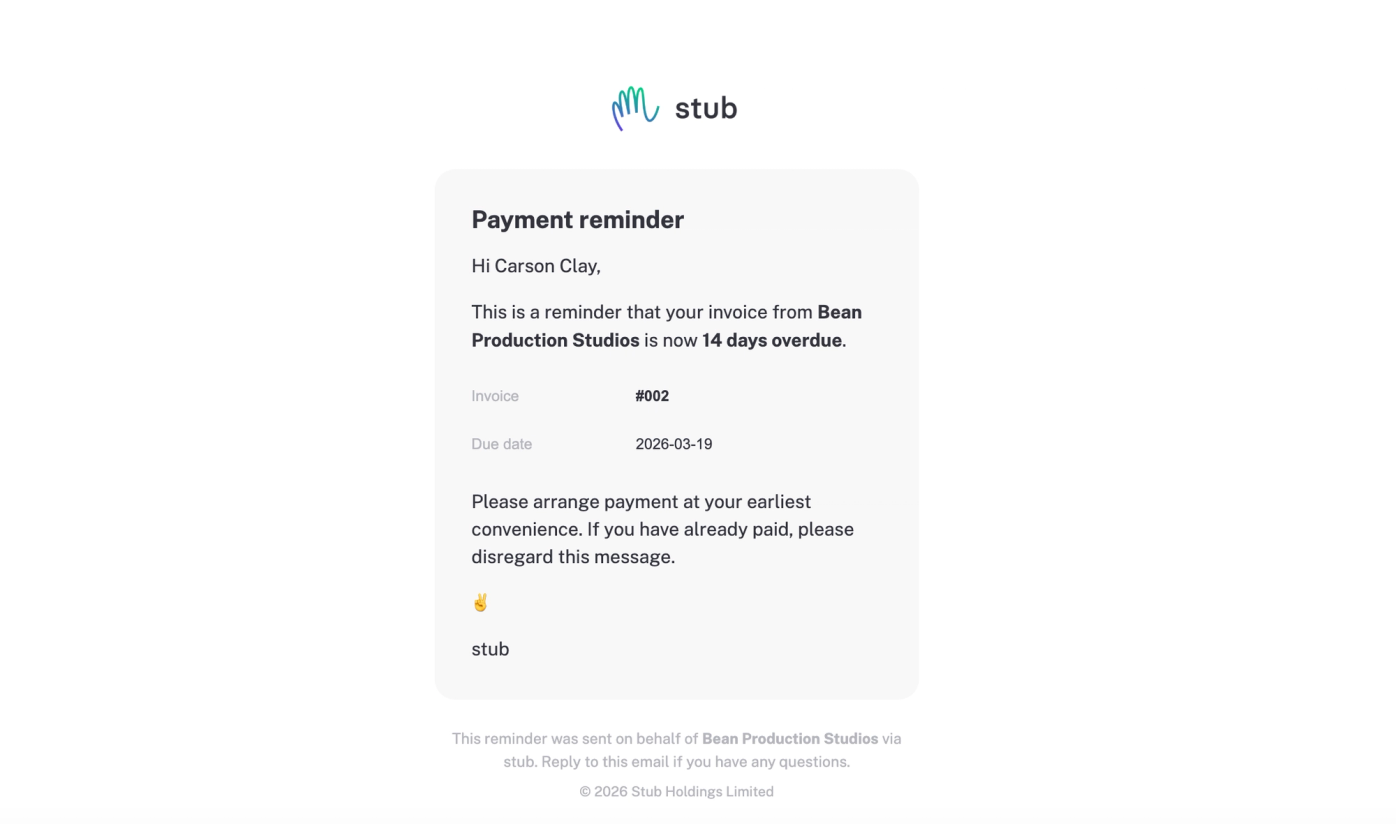
What you see
Every reminder stub sends shows up in your activity feed, so you always know what went out and when. You're never in the dark about which customers have been nudged.
Edge cases stub handles for you
- Draft invoices: Skipped. Reminders only fire on sent invoices.
- Already paid: If the customer pays before the next reminder, stub stops. No awkward "please pay" email after they've already settled.
- No email address: stub skips that invoice. No email, no reminder. You'll need to chase that one yourself.
Tips for getting paid faster
- Use a shorter frequency. Weekly reminders convert better than monthly — the invoice stays fresh.
- Turn on online payments. If your customer can click "Pay now" and pay right there, you'll get paid faster than if they have to go find your bank details and do an EFT. (See How to enable online payments for setup.)
- Set a sensible "Ends after" cap. 3 reminders is a sweet spot — enough to nudge, not enough to annoy.
- Keep your payment terms clear on the invoice. If the due date is obvious, the reminder feels helpful — not nagging.
FAQ
Will my customer know it's automated? Nope. The email looks like it came from you. There's a small "via stub" at the bottom, but that's it.
Can I customise the reminder email? Not yet — but it's on our list. For now, the email uses a clean, professional template with your business name and branding.
What if my customer doesn't have an email address? stub will skip that invoice and move on. No email, no reminder. You'll need to chase that one the old-fashioned way.