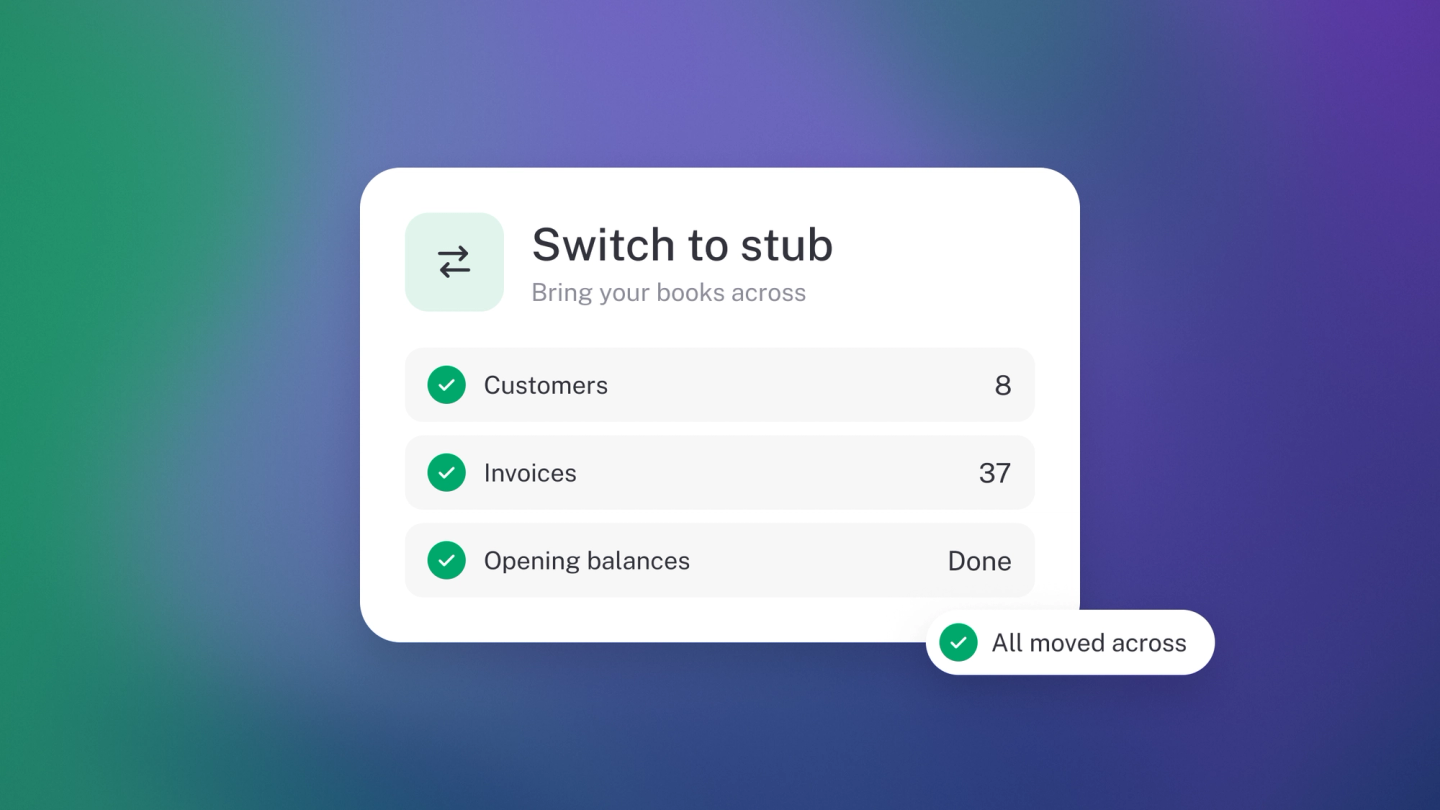
Switching to stub in seconds

Literally, in seconds.

Switching to stub in seconds

No, that's not a lie. Switching to stub is genuinely quick - think less time than adding groceries to your Checkers Sixty60 cart and checking out. Reeeally.

Whether you're coming from another accounting app, a spreadsheet, or (no judgement) the Notes app on your phone - stub can work with whatever you've got. If it has your business's financial data on it, it counts.

This guide assumes you've got your old system open in one tab and stub open in another. Ready? Let's go.

Before you start: pick your switch date

Before you do anything, decide on a switch date. This is the line in the sand, everything before it stays in your old system, everything after goes into stub.

Best options: the start of your financial year, the start of a quarter, or the start of a month. Avoid mid-month, it makes reconciliation messy and VAT returns complicated.

PRO TIP: If you switch at year end, you only bring over closing balances - not every transaction. Your old system keeps the full year for tax filing, and stub starts fresh.

Part 1: Get your data out of your old system

Open your old accounting software. You're going to pull out a few key things and save them to your computer. You don't need everything - just the stuff that matters for picking up where you left off.


1. Reconcile your bank accounts

Before you export anything, make sure your bank balance in the old system matches your actual bank statement, to the cent. If it doesn't, fix it now. An unreconciled difference will follow you into stub and become a permanent headache.

Every bank account reconciled and matching your bank statements? Good. Move on.

2. Export your Trial Balance

This is the most important export. Your trial balance is a snapshot of every account balance - what you own, what you owe, and what's left over. This will help stub set your opening balances.

Set the date to your switch date. Export it as a CSV or Excel file and save it somewhere safe.

3. Export your outstanding invoices

These are invoices your customers haven't paid yet. You need each one individually - not just the total - so you can track payments properly in stub. You can also create this in one excel sheet if that’s easier, but remember those details.

4. Export your outstanding bills

Same thing, other direction. These are the suppliers you still owe money to.

5. Export your customer and supplier lists

Names, email addresses, contact details. Export this out of one system and bring it into stub. If you are creating this list, focus on the ones you actively work with - you don't need to bring every contact you've ever had, but you can if you’d like.

6. Export your products or services lists

Products or services, their descriptions and prices. Selling physical products? If you've got stock on hand, add those quantities too.

7. File any outstanding VAT returns

If you're VAT registered, file all outstanding returns in your old system before you switch. You don't want to file a VAT return from two different systems for the same period. SARS definitely doesn't want that either.

You should now have saved on your computer:

  • Your trial balance
  • Outstanding invoice list
  • Outstanding bills list
  • Customer and supplier lists

This is your migration toolkit. Time to switch tabs.

Part 2: Set up stub

Switch to your stub tab. If you've just signed up, the onboarding journey will walk you through a lot of this. If you've already been poking around, head to Tools → Files to import, or follow along here step by step.

8. Check your company details

Go to Settings. Confirm your company name, registration number, tax number, and financial year-end are correct. Double-check the financial year-end, it affects all your reporting periods.

9. Import your customers and suppliers

Go to Tools → Files and drop in the customer and supplier CSV files you exported. stub will map the columns for you. Or add them manually - focus on your most active ones and anyone who still owes you (or you owe them) money.

10. Add your products or services

Drop in your products or services list into files in stub. Triple check your stock on hand if you are selling physical products.

11. Add your bank accounts

Add each bank account your business uses. Connect your bank feeds - stub will start pulling in transactions from here on out.

12. Enter your outstanding invoices

Open the outstanding invoices list you exported. This can either be a list of all the invoices with all their necessary detail, or each individual invoice as it’s own file. Drop these into files in stub.

13. Enter your outstanding bills

Same thing, other direction. Open your outstanding bills list or individual bills and throw them at stub - supplier name, amount, due date.


Tip: The easy way to get your documents into stub

Every stub business gets a unique email address - find it in Files in the side nav. It looks something like your-unique-name@docs.stub.africa. Forward invoices, receipts, or supplier docs to that address and they'll land straight in your stub Files. No uploading, no dragging and dropping - just forward and done. Save your stub email as a contact on your phone so it's always one tap away.

14. Enter your opening balances

This is the big one. Open the trial balance you exported and go to your opening balances setup in stub. You're now going to check your balances are right in stub.

Work through each account on your trial balance and check that everything looks right - bank accounts match your reconciled balances, VAT is correct, and loans and retained earnings aren't doing anything weird.

Part 3: Triple check

15. Check your numbers

Run these reports in stub and compare them against what you exported:

  • Trial Balance - does every account match the old system?
  • Accounts Receivables - do the individual invoices and totals match?
  • Accounts Payables - do the individual bills and totals match?
  • Bank balances - does each bank account match your actual bank statement?

16. Start using stub

You're live. From now on, all new transactions go in stub. A few things to set up for a smooth first month:

Bank feeds

If you connected them in Step 10, transactions should already be flowing in. Reconcile daily or weekly - don't let it pile up. Seriously.

Recurring transactions

Got regular invoices, bills, or journals (rent, salaries, subscriptions)? Set these up so you don't forget them.

Tags

Want to track by project, location, or team? Set tags up now. Easier to start clean than to retag everything later.

Nice to haves (nothing urgent)

These can wait. But when you're ready, they'll make your stub setup even better.

Assets

Equipment, vehicles, laptops - anything your business owns. Add the cost and accumulated depreciation from your fixed asset register so stub can continue depreciation correctly.

General ledger

Your full transaction history from the old system. Useful if you want comparative reporting, but not something you need on day one.

Team

Got an accountant, a partner, or someone helping you run things? Add them. They sign in, do their thing, and everything stays in sync.

That's it. You're in. ✌️