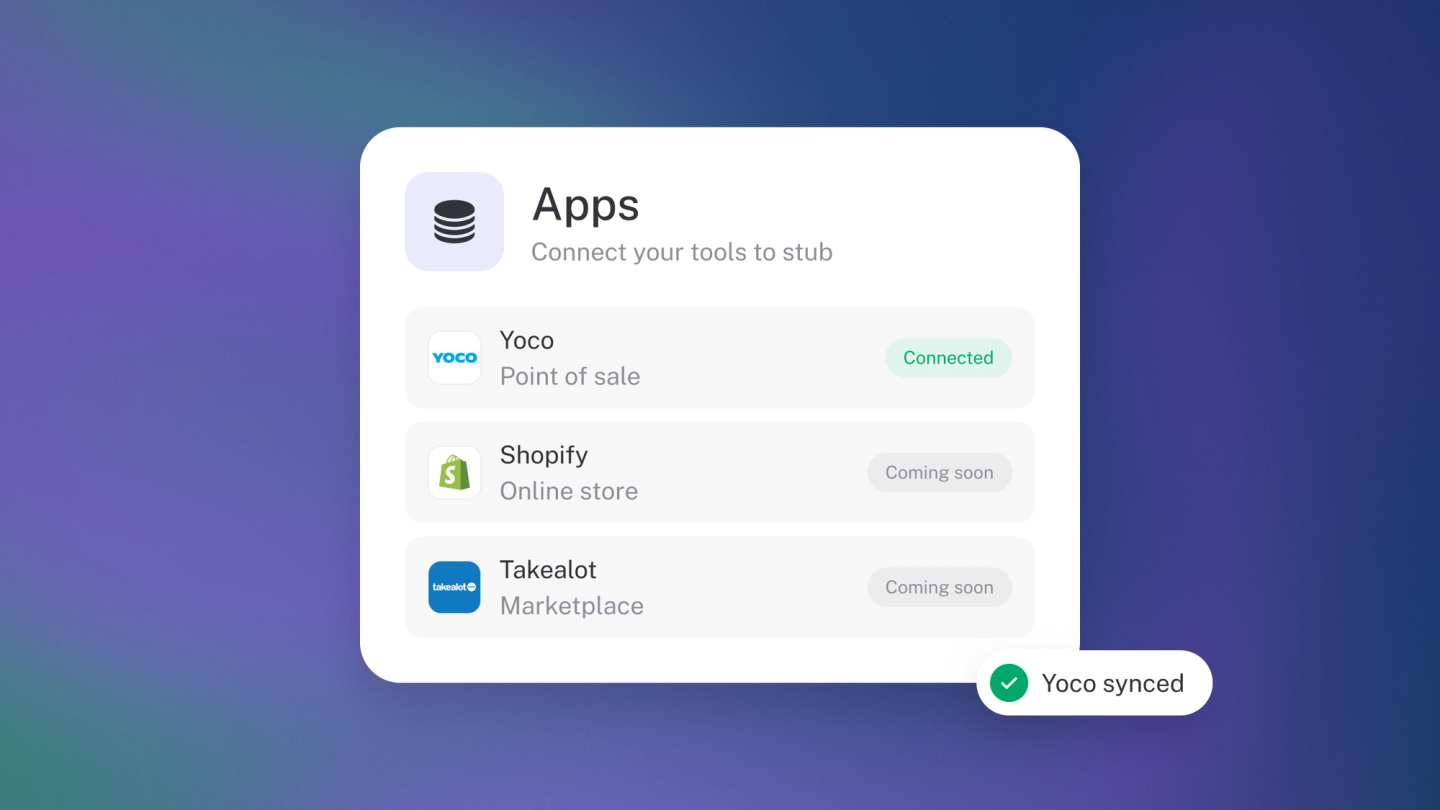
Once an app is connected, background sync keeps its data flowing into stub on its own — no manual pulls, no remembering to sync before you look at a report. If new sales only show up after you've pressed Sync, this is the switch you're looking for. Set it once per app and let the apps do the typing. Like the connections themselves, syncing a connected app comes with Steady Startup.
Turn background sync on
- Go to Settings → Apps — your connected apps are on the Manage tab.
- Click the app you want to keep in sync.
- Under Background sync, tick Automatically sync this app in the background.
- Click Save.
To turn it off, untick the same box and save. Background sync is per app — turning it on for Yoco doesn't turn it on for Shopify.
The other settings on that panel
Every app declares its own settings, so the panel varies from app to app. The common ones:
- Start date — data syncs from this date forward. Move it back to pull in older data.
- Location — tag incoming transactions with location info.
- Default tips account — where tips get categorised (for example Staff Tips under Liabilities if you pay them out, or Tips & Donations under Income if they're yours).
More... is where the app's switches live: set it to Enabled or Disabled, or Remove app to disconnect it entirely.
Sync on demand
Apps that support it show a Sync button in the Manage list — for when you want right-now numbers rather than waiting for the next background run. If nothing new has arrived, stub says You're all caught up: that's a successful sync, not a failure.
Connect a new app
Go to Settings → Apps, switch to Discover and pick the app — each card walks you through its own connection.
FAQ
- Does every app support background sync? No. If the checkbox isn't there, that app doesn't support it.
- Can I turn it on for everything at once? Not yet — it's per app.
- What if a sync fails? stub tells you when a connection breaks. Reconnect the app; if it keeps failing, contact support.