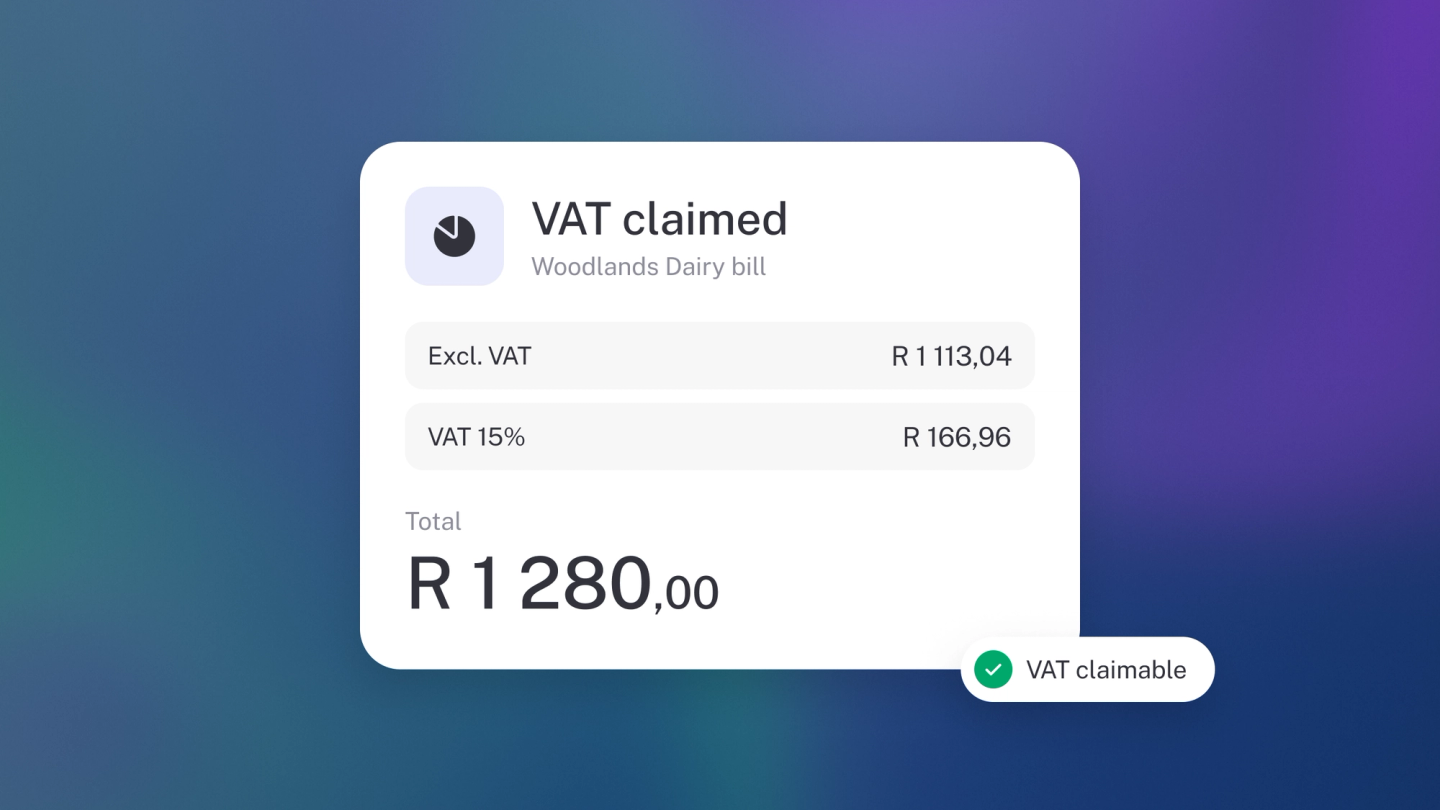
Not every rand of VAT arrives on an invoice. A cash sale, a card payment for fuel, a bank transaction you categorised this morning — each one carries VAT you either collected or paid, and the VAT you paid is money you can usually claim back. Recording it takes one click, and it takes the guesswork out of the return.
You need Sales Tax switched on first — it comes with Growing Business. See VAT, GST & Sales Tax. Until it's on, no Sales Tax section appears on income or expenses.
The amount you enter already includes the VAT
This is the one thing to know, and it's different from the rest of stub.
An income or an expense is a record of money that actually moved — R5,389 left your account, all in. So stub treats that amount as gross and works the VAT out of it: at 15%, R5,389 is R4,686.09 plus R702.91 of VAT. It never adds VAT on top and changes your total, because your total is the bank's, not stub's.
On an invoice line or a product you can choose — Include Sales Tax in the total on or off. Here the choice isn't offered: it's always on. See Set the tax on an item and Add VAT to an invoice for the places you can change it.
Add VAT to an expense
- Click Expenses in the sidebar, and open the expense — or create one.
- Check the Amount is what actually left the account, VAT and all.
- Under the amount, click + VAT.
- Choose the rate. stub fills in the VAT portion of the amount for you.
- Save.
The VAT you paid is now on your return as input tax, ready to be claimed back.
Add VAT to income
Same flow, from Sales: open the income — or create one — check the Amount is what you actually received, then click + VAT under the amount, choose the rate and save.
The VAT you collected is now on your return as output tax — money you're holding for the tax authority, not yours.
Adjust the rate or the amount
Click the VAT line to open it. Change the rate — or enter the VAT amount directly if the slip says something slightly different, a rounding difference on a till slip, for instance — and click Update.
You can add more than one rate to a single transaction, but only one line per rate.
Categorising bank transactions
VAT works the same way when you categorise a transaction that came from your bank — the amount is whatever the bank says, and the VAT comes out of it. See Categorise bank transactions.
Split transactions
Splitting a payment across categories? Each split line takes its own Sales Tax, so a single supplier payment can carry VAT on one line and none on another. The VAT still comes out of each line's amount. See Split transactions across categories.
Check what you've recorded
From Reports in the sidebar, open Sales Tax Summary for the totals, or Sales Tax Activity to read every transaction that moved VAT — both sit under Tax, and in South Africa they read VAT Summary and VAT Activity. See VAT & Sales Tax reports.
Tip: Add the VAT when you record the transaction, while the slip is still in your hand. An expense with no VAT on it is a claim you quietly gave up.