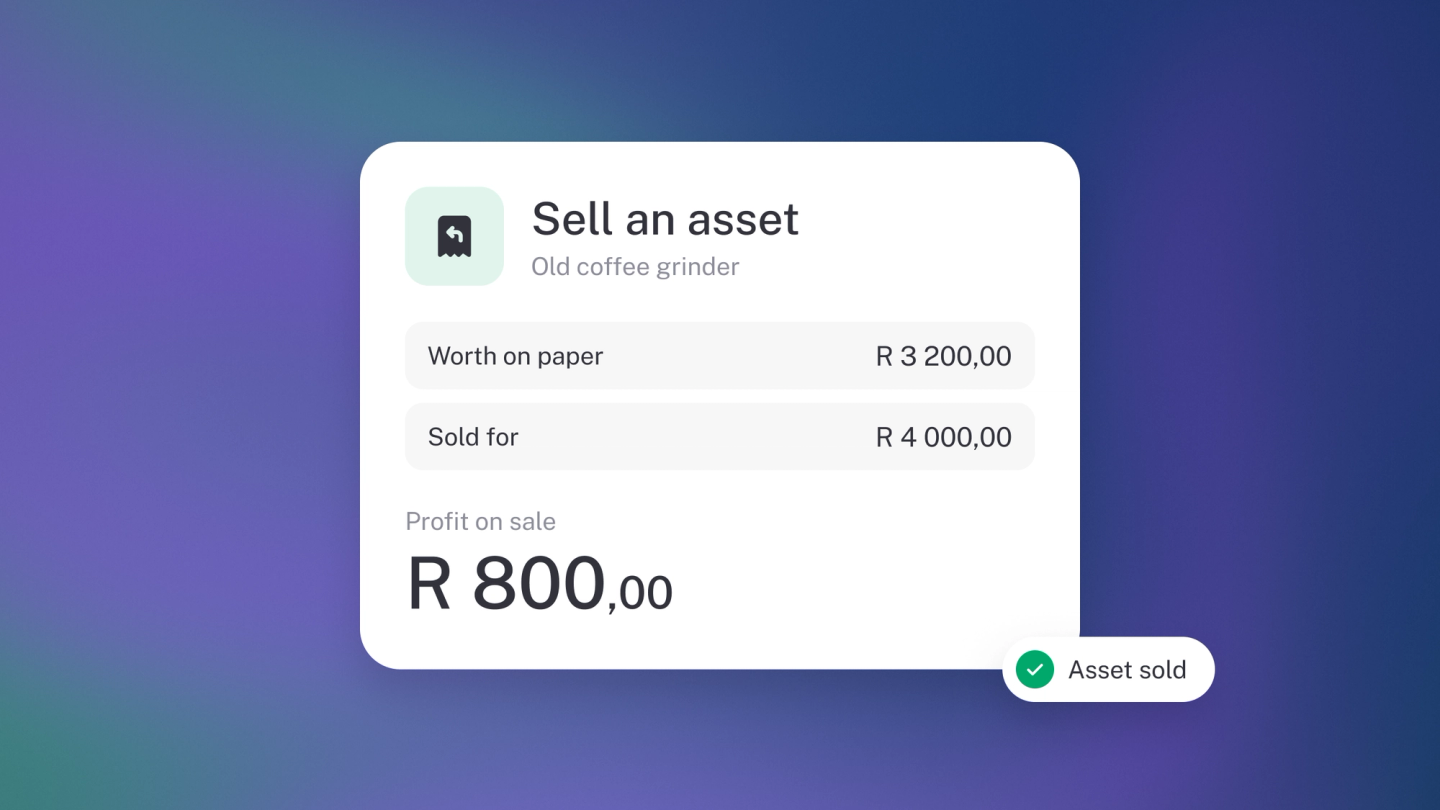
Gear doesn't stay forever. The van gets sold, the old laptop gets scrapped, and occasionally something simply walks off. When it happens, one status change keeps your books true: mark the asset as disposed and stub stops depreciating it that day — no journal entries, no cleanup.
Mark an asset as disposed
- Click Assets in the sidebar.
- Open the asset.
- Change Status from In use to Disposed.
- Set the Disposal date.
- Save.
Use Disposed whether the asset was sold, scrapped, stolen or simply retired. Depreciation stops on the disposal date, and the asset page shows This asset was disposed with the date at the top.
Record what you sold it for
- Open the disposed asset.
- Click the edit button next to Sale price. The Add sale window opens.
- Record what you received: link an Existing income if the money is already in your books — say the deposit came in through your bank — or create a New one with the amount and the date.
- Save.
If you scrapped it or it was stolen, record nothing — the sale price stays at zero.
Work out the gain or loss
Compare the Sale price with the Current value on the asset page:
- Sold for more than it was worth on the books — a gain.
- Sold for less — a loss.
A consistent gap between sale prices and written-down values usually means your useful life estimates need adjusting on future assets.
Record the money
The cash still lands in your bank as usual. Linking that deposit in the Add sale window is what categorises it — the sale price and the deposit are one record, so there is nothing extra to do in the bank feed.
Change your mind
Open the asset and set Status back to In use. Depreciation picks up again.
Tip: Attach the sale invoice or the scrapping note to the asset with the File button before you forget where you put it.