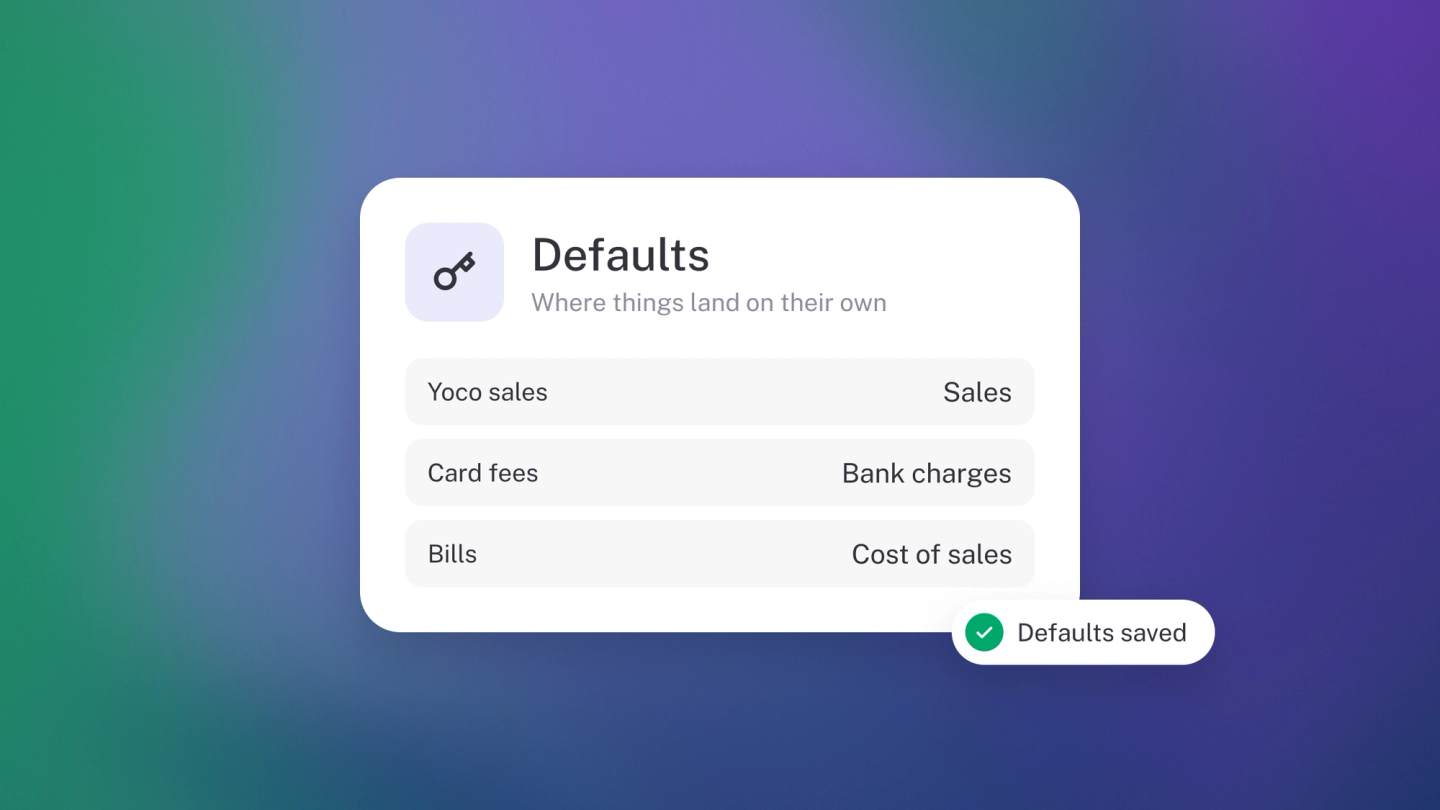
Every time stub posts something for you — a sale, a discount, a transfer between accounts — it has to pick an account to put it in. Default accounts are the rules it follows, and they come set up sensibly out of the box, so most businesses never need to change them. When you do want a say — perhaps your accountant prefers discounts in their own account — it's a three-click job.
Change a default account
- Go to Settings → Finance and, under the Advanced heading, click Edit next to Accounting rules.
- Under Default accounts, click Edit next to the one you want to change.
- Pick another account from your chart of accounts.
- Click Save.
What each default does
- Primary income — where your main revenue is posted.
- Discounts — where markdowns and promotions land.
- Online payments — payments received through stub's online payment options.
- Inter-account transfers — money moved between your own accounts.
- Asset disposal — the gain or loss when you sell or scrap an asset.
- Payables — where unpaid supplier bills sit until they're settled.
- Current year earnings — a holding account for profit or loss until year-end.
Link accounts to other things
Further down the same screen, stub shows which account each of your bank accounts, loans and Sales Tax rates posts to — click Edit on any row to change it. See How to add loans and liabilities.
Tip: Defaults don't lock you in. You can still post an individual transaction to a different account when you need to. But they're worth a once-over: a wrong default here quietly mis-states every report downstream.
Related: Customise Chart of Accounts.