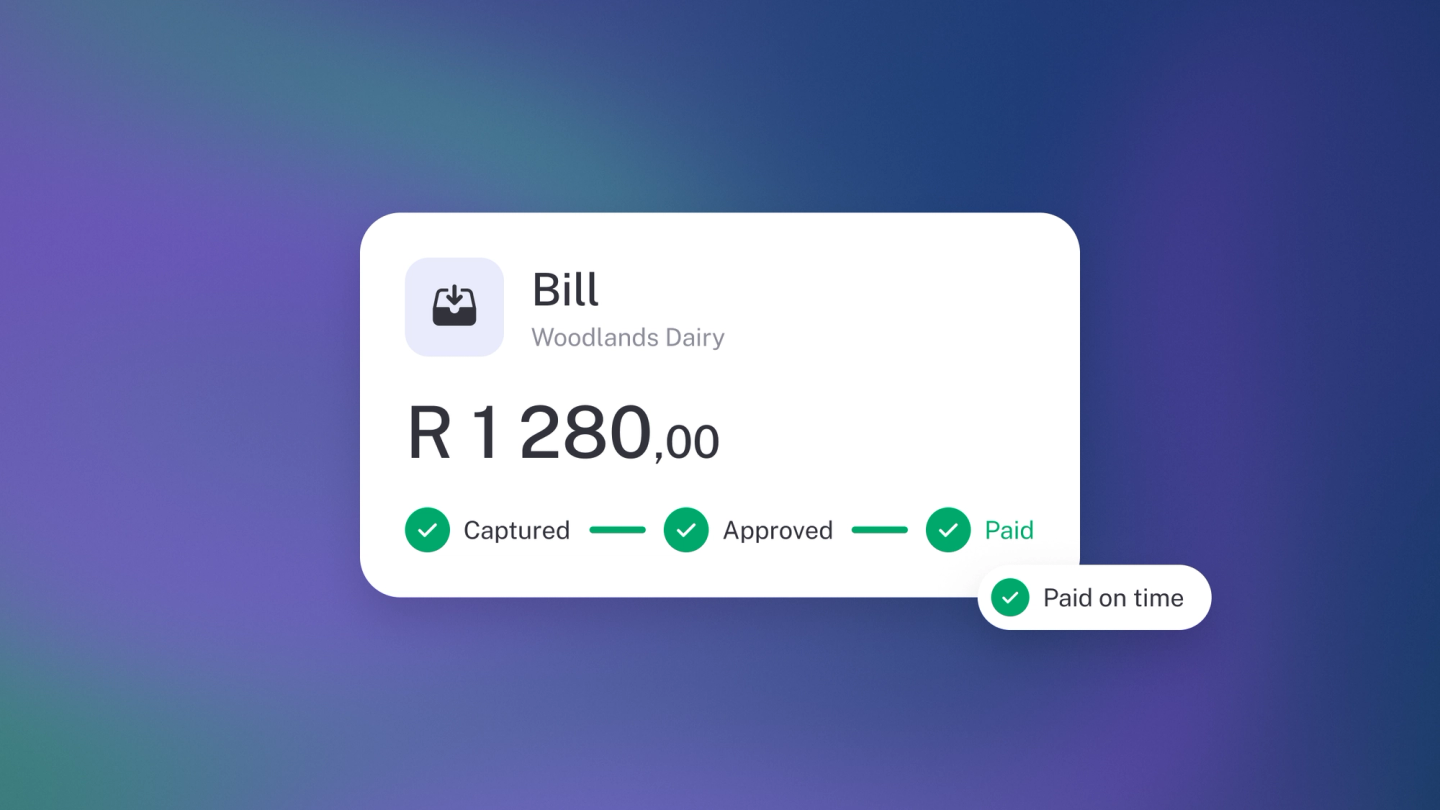
Bills are the supplier-side mirror of your invoicing. An invoice tracks what customers owe you; a bill tracks what you owe your suppliers.
The difference between a bill and an expense is timing. An expense records money already spent — the till slip is in your hand. A bill records money you still owe: a supplier delivers stock, invoices you, and gives you 30 days to pay. Record it as a bill the day it arrives, and stub tracks the debt — what's due, when, and to whom — until you settle it. One simple habit, and the whole picture stays honest.
Record a bill
- Click Expenses in the sidebar.
- Click Create → Bill. (Or press N, then B.)
- Pick the supplier at the top of the bill, or add a new one.
- Enter the supplier's bill number as your reference, and set the bill date and due date.
- Click Add item and enter what you were billed for, with the category it belongs to, the quantity and the price.
- Add Sales Tax to each line where you can claim it.
You can also start from the supplier: go to Suppliers, open them, and click Create → Bill.
Email bills straight to stub
Most supplier invoices arrive by email, so the fastest way to record one is to forward it. Every business has an inbound email address, shown at the top of the Files page in the sidebar. Forward the supplier's invoice to it and the document lands in Files within moments.
While the Import data box stays ticked, stub reads what it can off the document and creates the bill for you — supplier, bill number, dates and amounts — for you to check and save.
Tip: Save the address as a contact on your phone, called something like "stub bills". Forwarding an invoice then takes one tap, wherever you are.
You can also upload instead of emailing: in Files, click File (or press U), or drag documents onto the page — up to 10 at a time. Spreadsheets, CSVs, PDFs, images and documents all work; keep each file under 2 MB. Anything you send is visible to your team, and deleting a document from Files does not affect any transaction in stub. See Importing your files.
Attach the supplier's invoice
Use the file area at the bottom of the Options panel on the left of the bill. Attach the PDF the supplier sent you, so the paperwork and the record live together — no more digging through email when a question comes up.
Track what you owe
Everything you owe lives in one list. There's no separate Bills page — bills sit in Expenses alongside the rest of your spending, and the filter narrows the list by type, status, supplier or tag. The month selector at the top right changes the period.
Save a filter you use often as a view, and the slice you check most is one click away.
See what is due and what is late
The Bills tile on Insights shows what's overdue — or, set to Upcoming under Configure, what's coming up — as of today. Click it to open the full Overdue Bills or Upcoming Bills report. It's on the dashboard from Steady Startup; on Sneaky Side Hustle, add it from the ··· menu → Tile. See Payables.
Check a single supplier
Open the supplier under Suppliers. The left panel shows Total outstanding, and the list below shows every bill and payment on their account — the whole relationship on one page.
Pay a bill
When it's time to settle up, see Pay supplier bills.