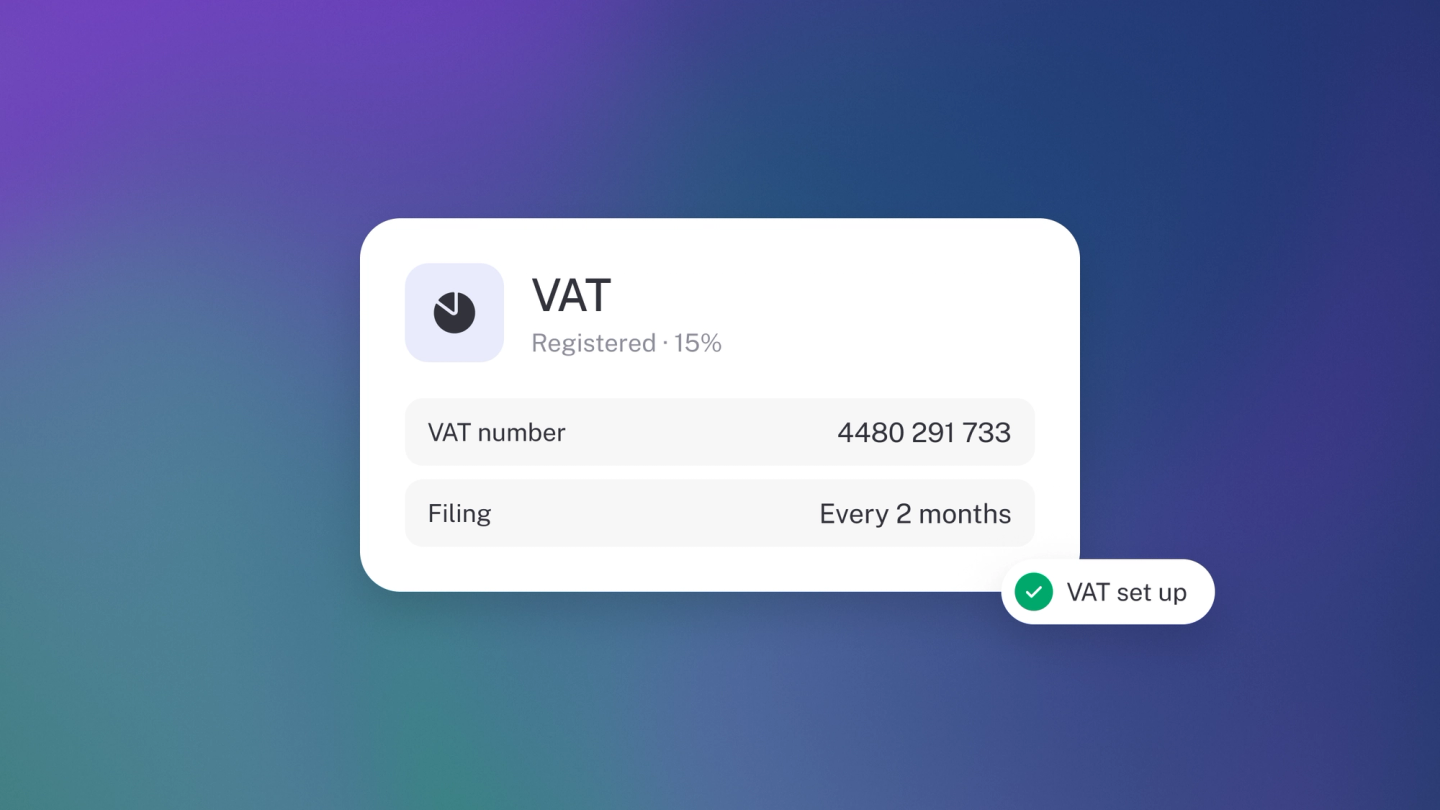
Charging tax usually means the business is growing — and stub makes it a one-time setup rather than an ongoing chore. Turn it on once, and stub adds the right rates to everything you sell and buy, then hands you the return already filled in.
1. Add or edit VAT rates
Turn it on first, and stub creates your country's standard rates for you.
- Go to Settings → Finance → VAT / Sales Tax.
- Next to VAT / Sales Tax Returns , click Enable.
- Choose your schedule from the list of available options.
- Enter your VAT registration number.
- If you need, Tick any return fields that can't be worked out from your ledger automatically, so you can tag matching transactions later.
- Click Enable.
In South Africa that gives you VAT (15%) and VAT (Exempt). Your registration number is saved to your business profile and appears on your invoices and quotes. If stub doesn't carry standard rates for your country, you go straight to adding one by hand.
To add your own rate:
- Next to Sales Tax, open the ··· menu and select Sales Tax.
- Enter a name, then set either a rate (%) or a fixed amount.
- Add a reference number if this rate needs its own.
- Choose whether the rate shows on invoices and quotes.
- Click Save.
To change or remove a rate later, click it in the list. Deleting a rate hides it from new documents — anything already recorded keeps it.
2. Add VAT to anything
VAT is never a global switch on your prices. You choose it where the money is — on the item, on the document line, on the money coming in and going out — and any one of those can override the one above it.
On a product or service. Open the item, find the Sales Tax section under the Price, and pick the rate that applies. Every invoice, quote, bill and purchase order that uses the item picks it up. See Set the tax on an item.
On an invoice or quote. Click + VAT below the price on any line to add, change or remove the tax on that line only. This overrides whatever the item carries, and leaves the saved item untouched. See Add VAT to an invoice.
On a bill or purchase order. The same + VAT control sits under each line, so the tax you paid your supplier is recorded and can be claimed back.
On income and expenses. Recording money directly, without a document? Add the VAT there too, under the Amount — so cash sales and card purchases land in your return like everything else. Here the VAT is always included in the amount: you recorded what actually moved through the bank, so stub takes the VAT out of it rather than adding it on top. See Add VAT to income and expenses.
Say whether the price includes the tax
On a product or service, and on any invoice, quote, bill or purchase order line, Include Sales Tax in the total decides the arithmetic:
- On — the price you entered already has the VAT in it. stub works backwards to show the tax portion. R4,600 including 15% VAT is R4,000 plus R600.
- Off — the VAT is added on top of the price you entered. R4,000 plus 15% VAT is R4,600.
Set it the way you quote your prices. A new line starts inclusive, an item carries whichever you chose when you set it up, and any line on any document can change it without touching the item.
Income and expenses are the exception: there is no choice to make, because the amount is already the total that moved.
3. Schedule your submissions
Set a schedule and stub prepares the return ahead of each due date, rather than leaving you to build one from scratch the night before.
- Open the ··· menu next to Sales Tax and choose Schedule.
- Pick your filing category if stub offers one for your country — South Africa's VAT 201 — otherwise set your own cadence.
- To change or remove a schedule later, click it in the list.
Each scheduled return then shows on the Returns tile on Insights, badged Due, Overdue or Filed, and the Sales tax due tile shows where you stand for the period. Both are on the dashboard from Growing Business; on other plans, add them from the ··· menu → Tile.
The reports you always have
Two reports sit under Tax in Reports from the moment Sales Tax is on, whether or not anything is scheduled:
- Sales Tax Summary — sales, purchases and adjustments: what you collected, what you paid, and the difference you owe or can claim back.
- Sales Tax Activity — every transaction that moved sales tax, line by line. Read it before you file; this is where a wrong rate or category shows up while it's still cheap to fix.
Set the period to match your filing period and both answer for that period.
The returns stub prepares
Each schedule adds a return of its own, prepared on your country's form and named for it — a VAT 201 in South Africa. Open it from Reports, or from its row on the Returns tile on Insights. It stays on your list once you've worked on it, so a filed return is a record you can go back to.
Full detail on reading and downloading them is in VAT & Sales Tax reports.
Tip: Get the rate right when you enter the transaction, not when you file. Fixing a quarter's worth of transactions the night before a return is due is nobody's idea of a good evening.