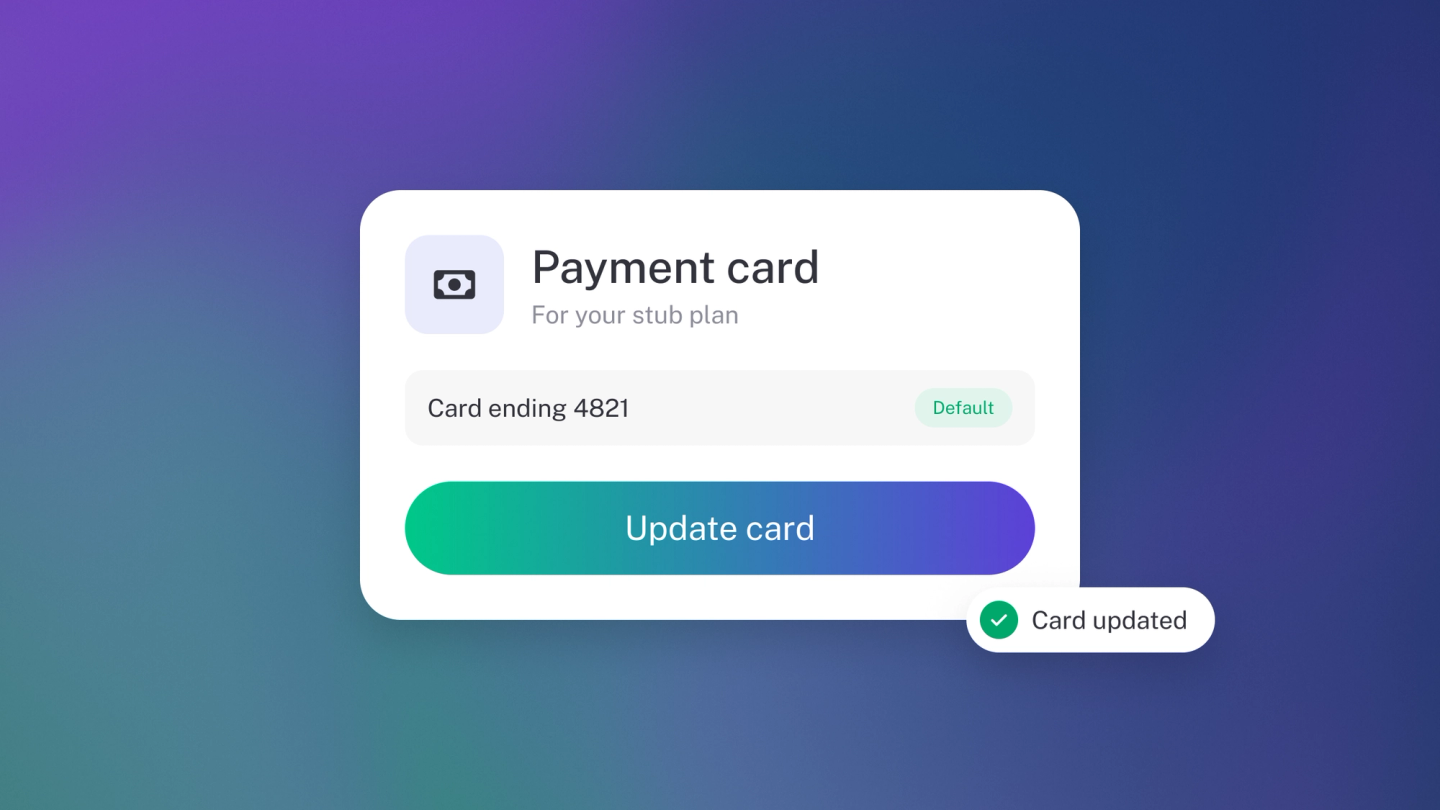
Your card is the one piece of your relationship with stub that stub deliberately never touches. Card changes happen in stub's secure billing portal, which you reach from the app — so a new card, an expired one, or a failed payment is a two-minute fix, not a support ticket.
The usual reasons you'll be here: the bank reissued your card and the number changed, the old one expired and the debit bounced, or you're moving the subscription onto the business card instead of your personal one.
Update your card
Go to Settings → Billing. Just above the plan cards you'll find Payment method, showing the card stub bills and when it expires. Click Change — stub's secure billing portal opens, you update the card there, and come back to stub when you're done. There are no card fields in the app itself, because stub never stores or shows your card.
If your card has already expired, this row says so and tells you to update it to keep your subscription running. Paying through Stripe Link? There is no expiry to warn about — Link manages the underlying card itself.
If a payment fails
Your plan card shows Overdue, and a notice at the top of Settings → Billing gives the date. Nothing is lost yet.
stub will retry your card itself before that date, so you aren't the only thing standing between you and a successful payment. If you'd rather not wait — and you have a card on file — click Pay now on the plan card to settle the failed invoice straight away. If there's no card on file, put one in first via Change next to Payment method, then pay.
Common causes: an expired card, a new card number after a bank reissue, or a bank blocking a recurring payment it doesn't recognise.
If your bank asks you to confirm
Your bank may ask you to approve the payment in its app, or by one-time PIN. Approve it and the payment completes.
If a partner manages your subscription
If your subscription came through a partner, clicking Manage tells you so. They hold the payment details — speak to them.
Check what you were charged
Your tax invoices are on the same page, so you can always see exactly what went off your card. See Download stub invoices.