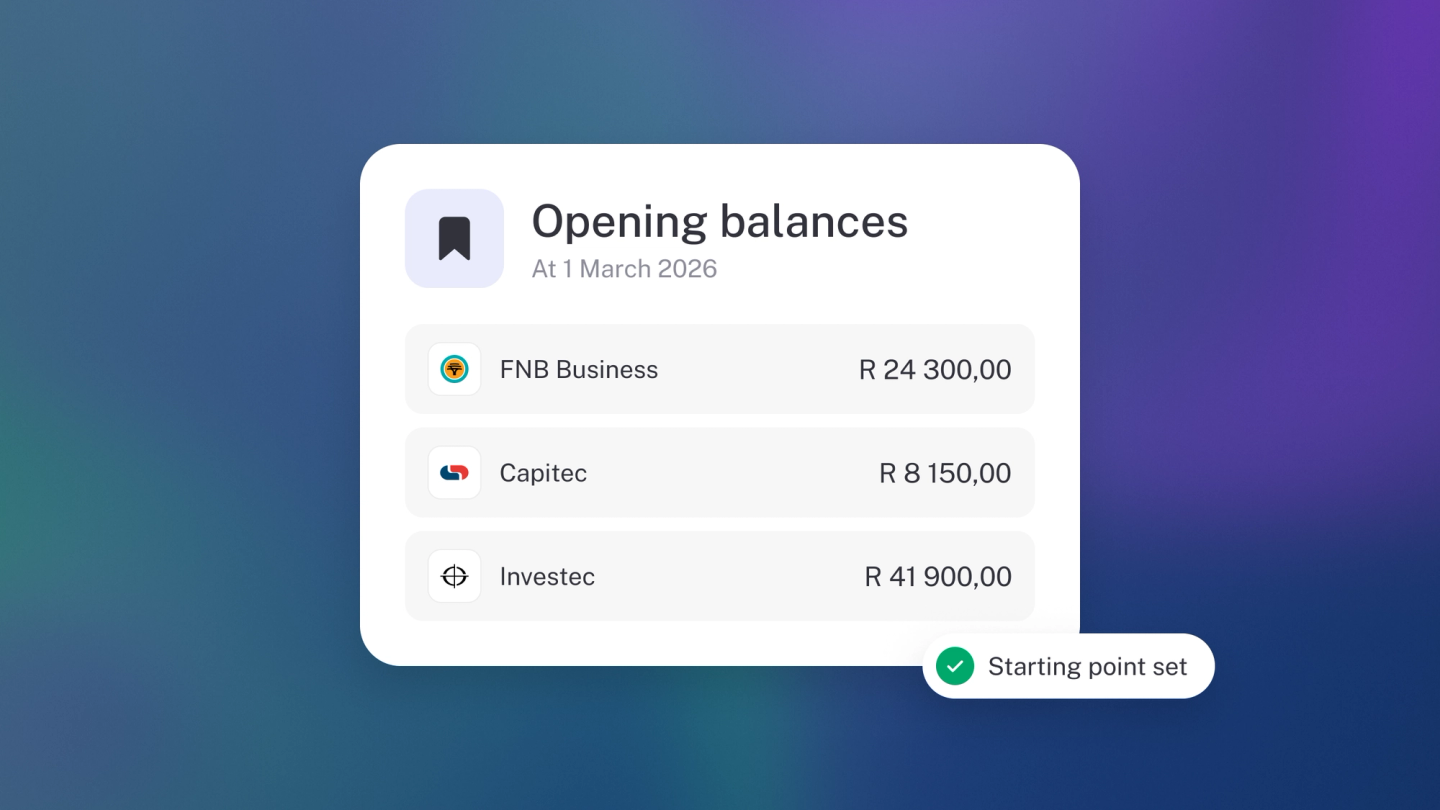
Opening balances are where your numbers stood the day you started using stub — the bridge that carries your old books into the new. Set them once, before you record anything else, and every report you run afterwards starts from the truth rather than from zero.
When to do this
Do it when you set up, before you start recording day-to-day transactions. Your opening balance date is usually the day your books in stub begin — the start of a financial year, quarter or month. The tell-tale signs you've skipped it: the bank balance in stub doesn't match the real one, reports read as if the business started the day you signed up, or your accountant asks where last year went.
Enter your opening balances
- Go to Settings → Finance and, under the Accounting heading, click Edit next to Opening balances.
- The first time in, stub offers to import a file — the quickest route if you have one (see below). To type them in, click Set manually.
- Set the Date — the day your stub books start.
- For each line, pick the Category and enter the amount as a Debit or a Credit. Work from the Trial Balance you exported from your old system — the report that lists every account's balance in a debit or credit column, ready to copy across line by line.
- Click Add to add another line.
- Check the Debit and Credit totals at the bottom match.
- Click Save.
You cannot save until the two sides balance — which is the point. If they don't match, something is missing.
Rule of thumb: money you have or are owed goes in Debit; money you owe, and money you put in yourself, goes in Credit.
What goes in
Work down your old Trial Balance:
- Bank accounts — the balance on each as at your start date.
- What customers owe you — the total of your unpaid invoices.
- What you owe suppliers — the total of your unpaid bills.
- Assets — gear, vehicles and stock at their current value.
- Liabilities — loans and tax owed.
- Equity — money you have put in, and profits carried forward.
If your date is wrong
If you pick a date that falls after transactions you have already recorded, stub warns you and offers a better date. Click the suggested date to use it.
If you already have transactions dated before your opening balances, Settings → Finance tells you so in an alert above Opening balances, for example "12 transactions are dated before your opening balances, earliest 3 Feb 2026." It's worth a look, because those transactions fall before the day your books in stub begin, and some may already be counted in your opening balances. If your books really start earlier, move your opening balances date back to cover them. If you're not sure whether they belong, ask your accountant before you change anything.
Import them instead
Importing is the first thing stub offers when you click Edit before any balances exist. Drop in the Trial Balance, chart of accounts or account summary you exported from your old system — a spreadsheet or even a PDF — and stub reads the balances out of it.
Change or remove them
Back at Settings → Finance, click Edit next to Opening balances — change the lines and save, or click the trash button to remove them entirely.
Check your work
stub shows an opening balances warning on Sales, Expenses, Insights, General Ledger and Transactions until they are set. Once they are in, run Trial Balance from Reports in the sidebar and check it against your old system.
Contact balances
To record what a specific customer or supplier owed on day one, see Customer & supplier opening balances.
For the stock you held on day one, set opening stock on each item instead. See Record your opening stock.
Note: "Opening balance" also describes the starting balance you set on an individual bank account when you add one manually. That is a separate, per-account setting — the opening balances on this page are the ledger-wide starting numbers for your whole business.