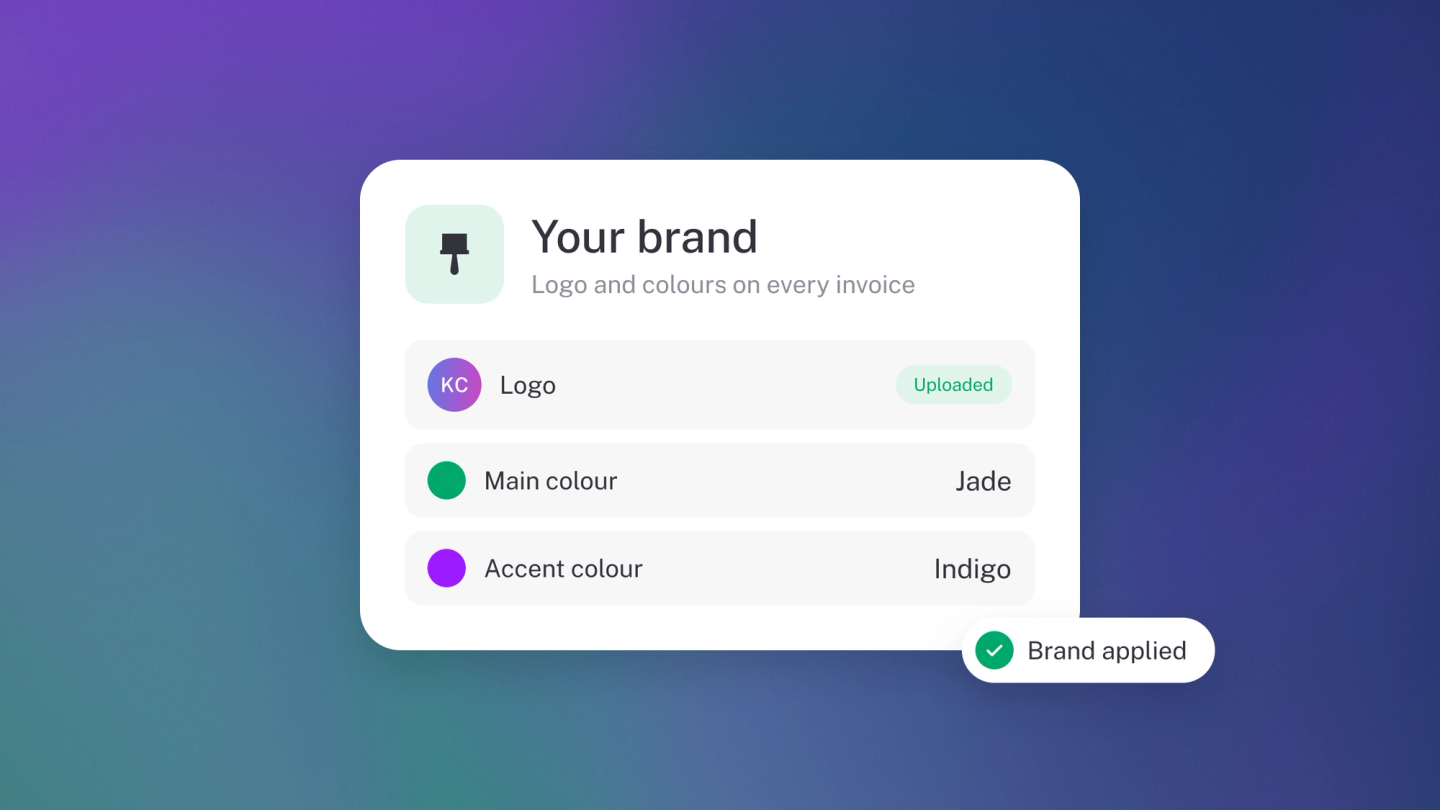
Your customers see your brand, not stub's. A logo, a colour and wording that sounds like you turn every invoice into a small piece of marketing — and it takes minutes to set up, in two places: Business for your logo and colour, Preferences for your default wording. If your documents still look like a plain template, this is the fix.
Add your logo and brand colour
Go to Settings → Business and scroll to the Design heading: click Logo to upload your logo, then Accent colour to choose your brand colour. The logo is free; the accent colour comes with Steady Startup, so on Sneaky Side Hustle you’ll be prompted to upgrade.
Your logo and colour appear on invoices, quotes and the pages your customers see. And on any paid plan, the "Powered by stub" line drops off those customer-facing pages automatically — no toggle to find.
Set your default invoice wording
Go to Settings → Preferences. Under Invoices, set:
- Invoice title — what your invoices are called, picked from a short list. In South Africa most VAT-registered businesses choose Tax Invoice.
- Invoice notes — the notes printed on every invoice, such as your payment terms.
- Invoice email — the default message in the email that carries the invoice.
The mix-up to avoid: Invoice notes print on the document itself; Invoice email is the covering message around it.
Set your default quote wording
On the same page, under Quotes, set your Quote notes and Quote email — they work exactly like their invoice counterparts.
Delivery notes
One setting lives under Delivery Notes: Signature. Switch on Require signature if you want a signed proof of delivery whenever you download a delivery note.
Note: You can override any of this wording on an individual document without changing your defaults.