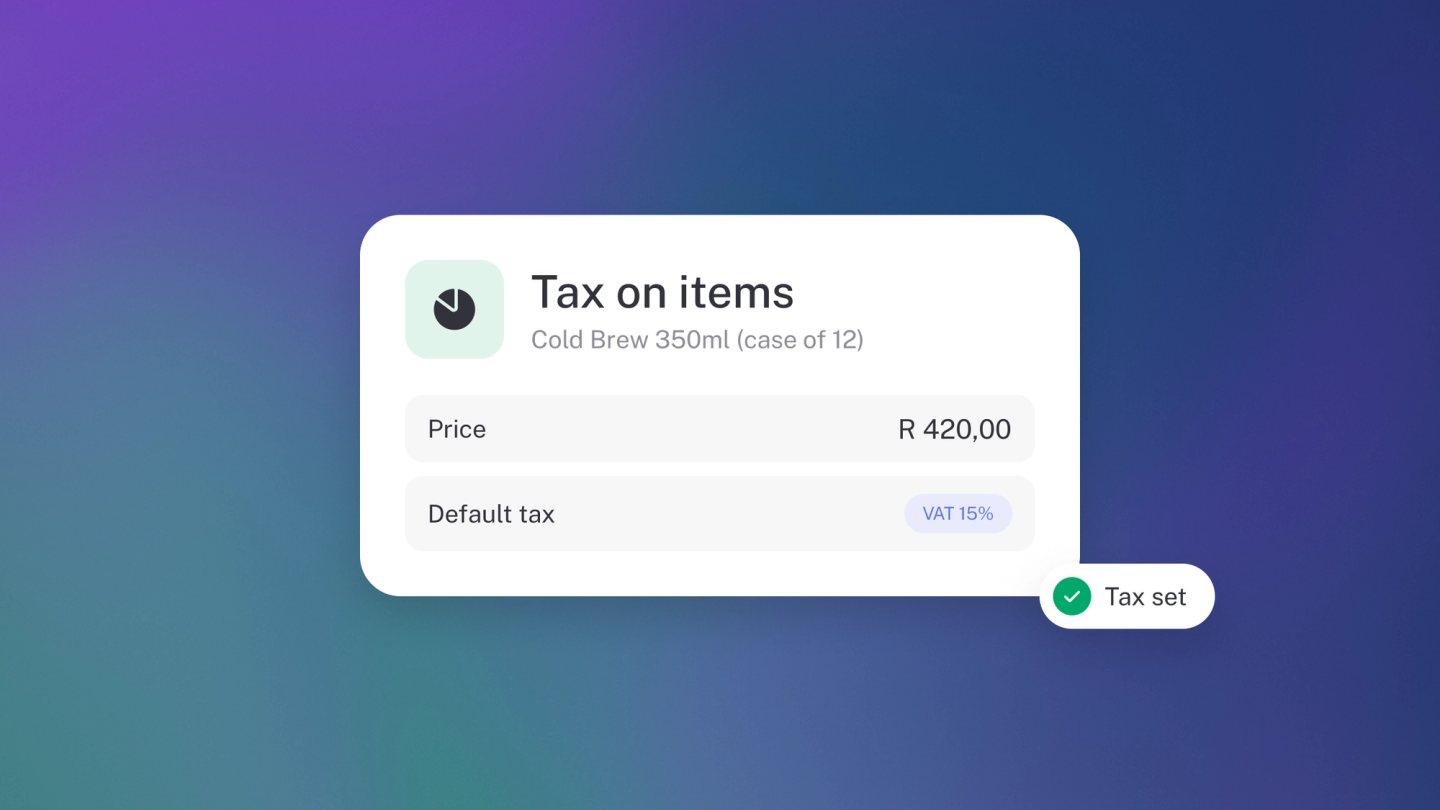
A default tax rate on an item is exactly what it sounds like: you tell stub once what tax an item carries — in South Africa, usually 15% VAT — and every invoice, quote, bill and purchase order that uses the item picks up the right rate automatically. No more 15% on a calculator before every line, and no more guessing which prices already had VAT in them. Your totals come out the way your customers — and SARS — expect to see them.
Tax on items comes with Growing Business, and you need to turn Sales Tax on first — see VAT, GST & Sales Tax. Until both are true, no Sales Tax section appears on an item.
Set the tax on an item
Open the item from Products & Services and look under the Price — that's where the Sales Tax section lives. Add the rate that applies — in South Africa, that is usually VAT (15%) or VAT (Exempt) — and save.
Say whether your price includes tax
This is the setting that trips people up, and it's worth getting right. In the same Sales Tax section, use Include Sales Tax in the total:
- On — the price you entered already has tax in it. stub works backwards to show the tax portion.
- Off — tax is added on top of the price you entered.
Set this the way you quote your prices, and your invoices will match what your customers expect to see.
Override the tax on a single line
Whatever the item carries, you can change it on the document.
Open the line on the document — click Add item for a new line, or click an existing one — and add, change or remove the Sales Tax right there. It affects that line only; your saved item is untouched.
Where your rates come from
stub sets up your country's standard rates when you turn on Sales Tax. To add your own, go to Settings → Finance → VAT, open the ··· menu in the Sales Tax section, and add a rate.