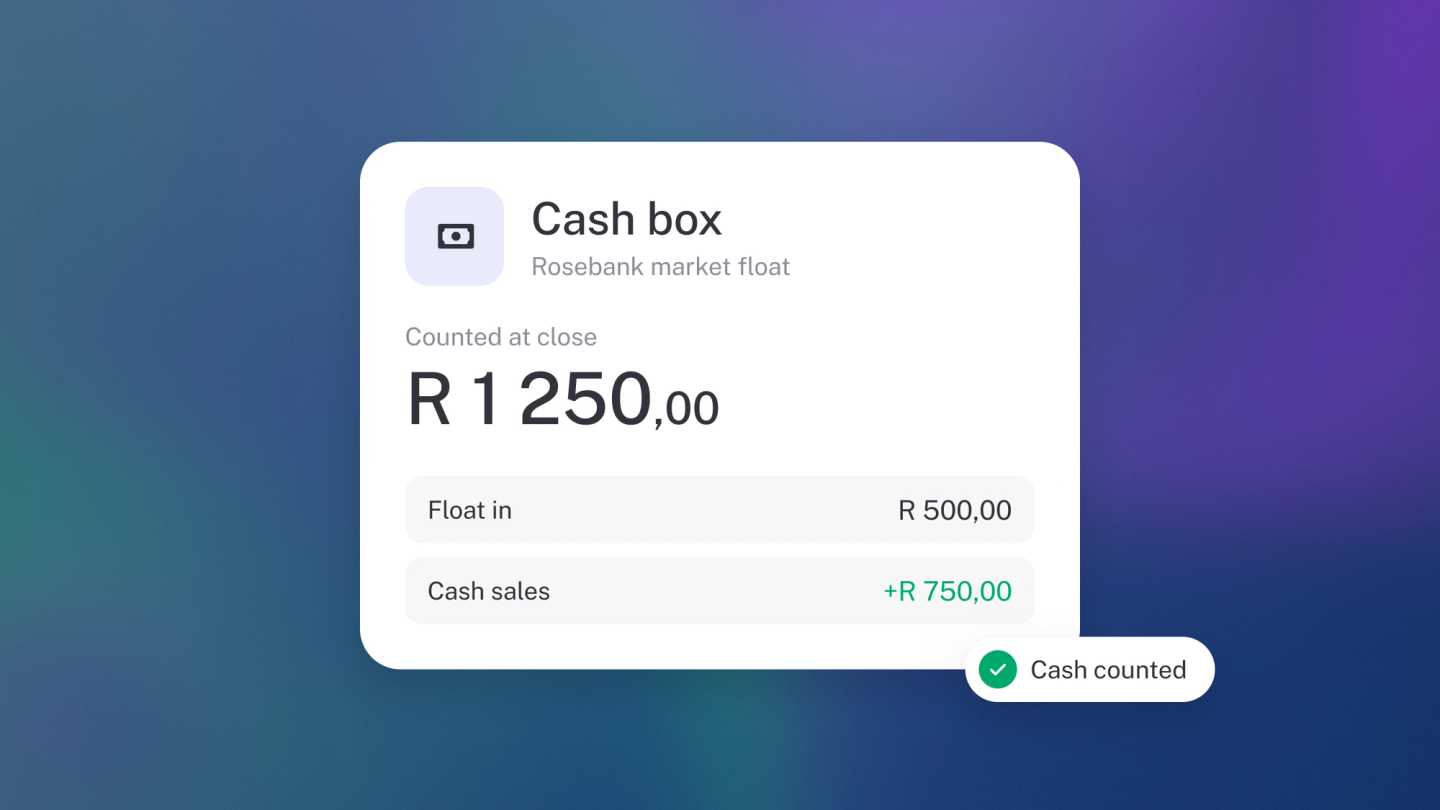
Cash is the money a bank feed can't see. If your business takes notes at a till, keeps a petty cash tin, or holds a balance in a payment wallet, that money needs somewhere to live in stub — and it must not be your bank account, or your bank balance will never agree with your bank.
A cash account is that somewhere. Set one up per real-world pot of money, and every cash sale and cash cost has a home, your Balance Sheet counts what's actually in the drawer, and nothing gets tangled.
What makes an account a cash account
One checkbox: Cash or cash equivalents account. Tick it on any asset account and three things follow.
- The account appears in the Paid to and Paid from pickers on every income and expense, so you can record money as having moved through it.
- Its balance counts under Cash & Cash Equivalents on your Balance Sheet, alongside your bank accounts.
- Its movements count as real money moving on your Cash Flow report.
Without the tick, the account still exists but never appears in those pickers — which is the usual reason someone can't find the account they just made. stub's own description of the checkbox is the best guide to what belongs here: real-world money accounts, like bank accounts, investment accounts, petty cash accounts or third-party payment wallets.
Add a cash account
- Go to Settings → Finance and, under the Accounting heading, click Chart of accounts.
- Open the Assets tab.
- Scroll to the bottom and click Add account.
- Pick a suggested account if one fits, or click Custom account to make your own.
- Give it an Icon, a Name and a Description. The description isn't decoration — stub reads it when it categorises transactions for you.
- Click the More (gear) button.
- Tick Cash or cash equivalents account.
- Set a Currency if this pot holds something other than your operating currency.
- Click Save.
It's now available under Paid to and Paid from on your next income or expense.
Add one account per pot of money
This is the bit worth getting right, and the reason to do it now rather than later: stub can only tell you what's in a cash pot if that pot has its own account. One shared "Cash" account holding the till, the tin and the money in your pocket gives you a single number that matches nothing you can physically count.
So add an account for each:
- Till / cash drawer — the float and the day's takings. One per till if you run more than one.
- Petty cash — the tin the small stuff comes out of.
- Owner's pocket — cash you're carrying on the business's behalf. Keep it separate from drawings; see Handle personal spending on a business account.
- Payment wallets — a balance held with a payment provider before it pays out to your bank.
- Foreign cash — set the account's Currency and stub converts it back for your reports. See Multi-currency and exchange rates.
Name them after the thing in the real world — Till 1, Petty cash tin, Yoco wallet — not after what they do. When you're standing at the till counting notes, you want to know instantly which account to check against.
Tip: Give each cash account a distinct icon. The Paid to and Paid from pickers are searchable lists, and icons make the right one findable at a glance.
Or add it under Bank Accounts
If the pot has actual bank details — a second business account, a savings account, an account at a bank with no live feed — add it at Settings → Bank Accounts → Bank account → Add manually instead. That route asks for the account name, number, bank, branch code, account type and SWIFT code, sets an opening balance, and can print the details on your invoices. Accounts added there are cash accounts already; there's no checkbox to find.
For a till or a tin, none of those fields mean anything — use the chart of accounts route above.
Adding a manual account under Bank Accounts is free. Editing your chart of accounts comes with Steady Startup.
Set the starting balance
A new cash account starts at zero, which is wrong the moment there's already money in the tin.
If you're setting up your books, put the balance in with your other opening balances: Settings → Finance → Edit next to Opening balances. See Set your opening balances.
If you're adding a cash account partway through a live year, record the money into it the way it actually arrived — a cash sale, or a transfer from the bank — rather than back-dating an opening balance into a period you've already reported on.
Check a cash account against what you can count
Cash accounts have no feed, so nothing checks them but you. The balance in stub is exactly the sum of what you've recorded, which makes a physical count the only real audit.
- Click General Ledger in the sidebar.
- Pick the cash account in the account filter.
- Running balance is ticked once you've filtered to one account — the last row is what stub thinks is in the pot.
- Count the actual notes and coins.
If the two don't agree, something wasn't recorded — a cash sale, a cash purchase, or money moved to the bank. Find and record it. If you genuinely can't account for a difference, post the shortfall to an expense account so the balance tells the truth; see Post a manual journal entry.
Do this weekly on a busy till. A R200 gap is findable on Friday and a mystery by March.
Move cash to the bank
Banking the day's takings is money moving between two accounts you already own — not new income. Record it as a transfer, so it comes off the cash account and lands on the bank account without being counted twice.
Get this wrong and the same sale appears twice: once when you took the cash, once when you banked it. Your account for inter-account transfers is set under Settings → Finance → Accounting rules — see Set your default accounts.
The same applies to a payment wallet paying out: the payout is a transfer from the wallet account to the bank, and the sale was recorded when the customer paid.
Archive a cash account you've stopped using
Closed a till or emptied a tin for good? Open the account in your chart of accounts and archive it. The history stays, and the account stops appearing in the Paid to and Paid from pickers. See Customise your Chart of Accounts.
Recording the transactions themselves
This article is about the accounts. For the steps to log a cash sale or a cash cost against one, see Record income and expenses.