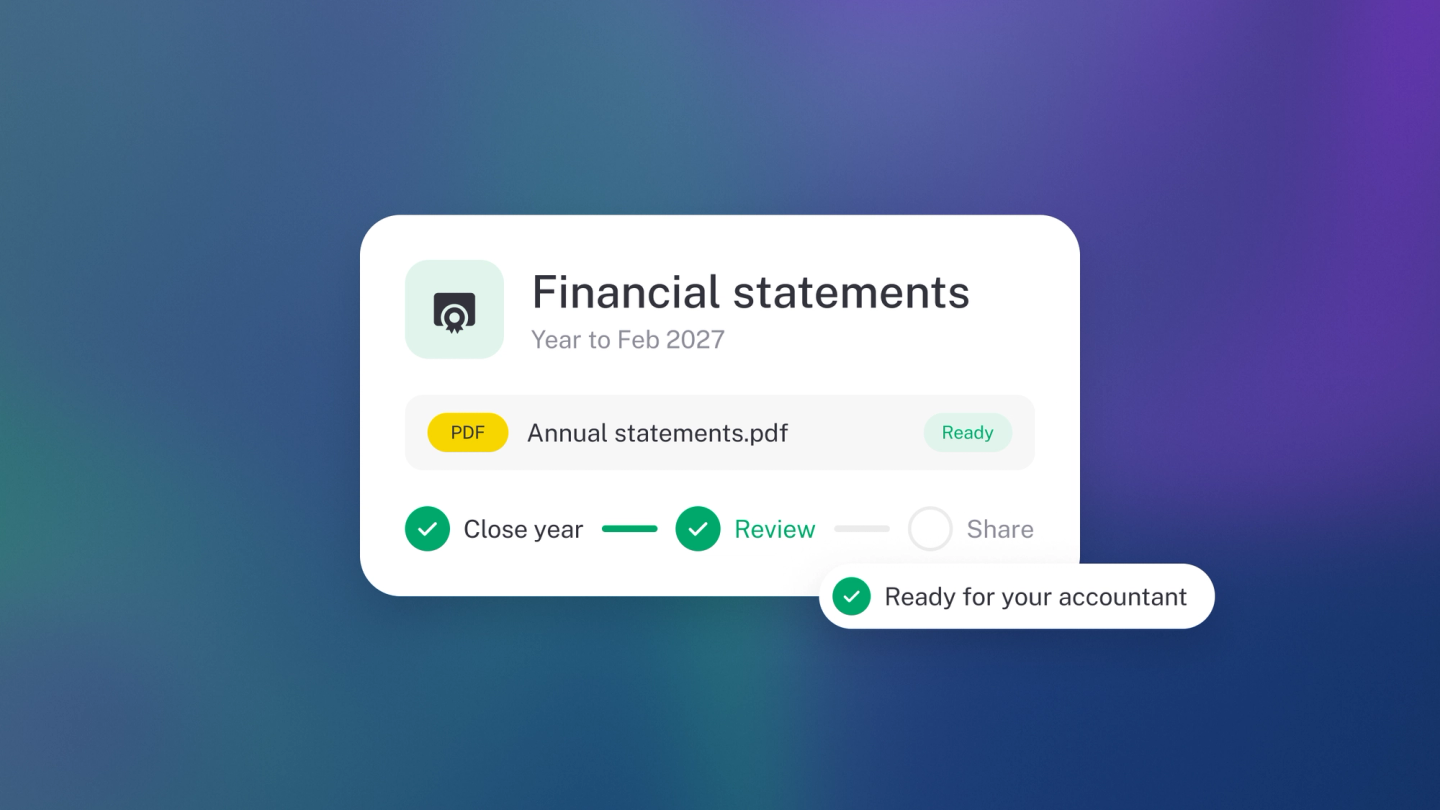
There's a moment in most small businesses where a single report stops being enough. The bank asks for "your financials". The accountant asks for "the last quarter". A partner comes in and wants to see the whole shape of the thing. Any one report answers a third of that question — Profit & Loss says whether you made money, Cash Flow says whether it arrived, Balance Sheet says what you're standing on — and the person asking wants all three, in one file, covering the same period.
That's what the Financial statements pack is for. You choose which reports go in, over what period and in what order, and stub builds one PDF with a cover page in front of it. It looks like something an accounting firm sent, because it's the same set an accounting firm would send.
What to know before you build one
- This is a management pack, not annual financial statements. If someone has asked for annual financial statements — the compiled, signed set with notes and accounting policies — that's a job for your accountant, and this pack is the raw material they'll work from, not a replacement for it. For a loan application, a landlord, a board meeting or your own monthly review, this pack is exactly the right thing.
- One date range covers the whole pack. Every report in the file is built for the same period, which is the point — figures that agree with each other. The Balance Sheet is the exception by nature: it's a snapshot at the end date of your range, because that's what a balance sheet is.
- The pack is PDF only. If someone needs to work with the numbers in a spreadsheet, download the individual reports as CSV instead — see Export & share a report.
- The warnings you see on screen don't travel into the PDF. Uncategorised transactions and missing opening balances distort the pack exactly as they distort the reports, but the pack won't tell the reader that. Open the reports on screen, clear the warnings, then build the pack — see When report numbers look wrong.
- Your choices are remembered. Selection, order and per-report options are saved, so next month's pack is one click away.
Build the pack
- Go to Reports in the sidebar and click Download next to Financial Statements. (On the Profit & Loss, Cash Flow, Balance Sheet and Sales pages, ··· → Financial statements opens the same builder.)
- Set the date range at the top. It starts on the last three months.
- Tick the reports you want in the pack. Profit & Loss, Cash Flow and Balance Sheet are ticked to start with; the counter at the top tells you how many are selected.
- Drag the handle on the left of any row to change the order they appear in the PDF.
- Click the options icon on a row to set how that report is broken down (see below).
- Click Download.
You'll get one PDF named after your business, opening on a cover page with your logo, your business name and the period.
What you can put in it
- Profit & Loss — Income, cost of sales and expenses for the period. The headline.
- Cash Flow — Money in and out, which is the question a lender asks second.
- Balance Sheet — What you own and owe, as at the end date of your range.
- Sales — Where the income came from — by customer, category or product.
- Expenses — Where the money went — by category or supplier.
- Overdue Invoices — What customers still owe you.
- Overdue Bills — What you still owe suppliers.
- Trial Balance — The proof the books add up. Include it when an accountant asked for the pack.
Reports with nothing in them for the period still appear, marked No data for this period, so the reader can see the report was run rather than wonder whether it was left out.
Set up each report
The options icon on a row opens the settings for that report only:
- Show — how the report is broken down. Sales can group by customers, categories or products; Expenses by categories or suppliers; Cash Flow by categories or bank accounts.
- Compare — None for a single column, Monthly or Yearly for a column per period, or By tag for a column per project, branch or campaign. By tag only appears once you have tags set up, and isn't offered on Cash Flow.
- Include — tick Total to add a totals column across the compared periods.
A dot on the options icon tells you a report has been changed from its defaults.
What a bank wants to see
Most lenders in this market ask for the same three things: Profit & Loss, Balance Sheet and Cash Flow, over the last 12 months, plus your latest Overdue Invoices if they're weighing up how quickly you actually get paid. Build the pack in that order — it's the order they'll read it in — and check the Profit & Loss on screen for warnings before you download.
For a monthly management pack, the usual set is Profit & Loss and Cash Flow with Compare set to Monthly, so the trend is visible in the columns rather than something the reader has to work out.
Before you send it
- Check the date range covers the period you were actually asked for.
- Open the reports on screen and clear any uncategorised-transaction or opening-balance warnings.
- Check the reports are in the order you want them read.
Tip: Build the same pack on the same day each month. Because stub remembers your selection and order, month twelve takes as long as month two — and a year of consistent packs is what makes a lending conversation short.