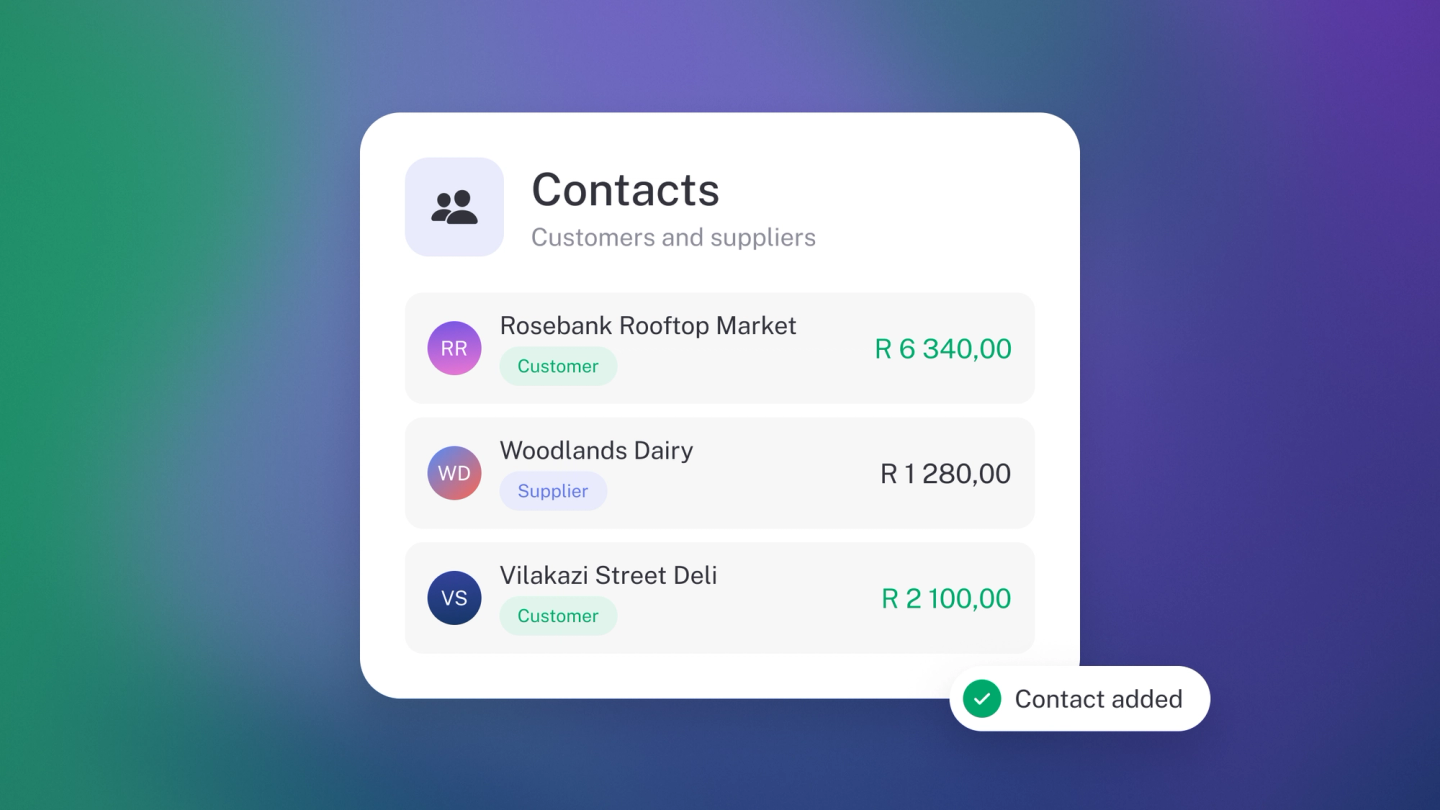
Your customers are the people behind every invoice you send. Get them into stub once — name, email, the details that matter — and every invoice, quote, statement and payment reminder fills itself in from then on. That's the stub way: capture it once, then let it work for you.
Add a customer
- Click Customers in the sidebar.
- Click Customer. (Or press N.)
- Fill in the basics:
- Name — the business or person you are billing.
- Email address — where their invoices, quotes and statements go. Worth capturing now: without it, payment reminders have nowhere to go later.
- Telephone — their main phone number, so it's to hand when you need to call about a payment.
- Address — printed on their documents.
- Need more? The extra fields sit behind the add buttons at the bottom of the form:
- Contact — a contact person, with their own email address and phone number (separate from the business telephone above).
- Sales Tax Number — their VAT number, if they have one. Labelled VAT Number in South Africa.
- Registration Number — their company registration number.
- Website — their web address.
- Customer Code — your own reference for them, if you use one.
- Save.
Only the name is essential to get going — you can always come back and fill in the rest. And if you can't find a field, it's behind those add buttons at the bottom of the form.
Edit a customer
Head to Customers, click the ··· on the customer's row and choose Edit — or open the customer and click their details card on the right. Change what you need and save.
Star your main customers
Click the star at the top of a customer — or on their row in the list — to pin them. Starred customers sort to the top of your list — handy when a few names make up most of your business.
Flag a customer
Flagging marks a customer so you and your team notice them — and you can filter the list down to flagged customers only.
Open the customer and click ··· → Flag. A tick appears next to Flag while it is on; click it again to clear it. You can also flag from the ··· on the customer's row in the list.
Tag a customer
Tags let you group customers by branch, channel or campaign, and report on them later. Tags come with Steady Startup.
Open the customer and use the tag selector on the left panel — or click the tag icon on the customer's row in the list. See Create & manage tags.
Set an opening balance
If a customer already owed you money before you started in stub, record it as an opening balance. See Customer & supplier opening balances.
See what a customer owes you
Open the customer. The left panel shows Total outstanding, or a line per currency if you bill them in more than one.
Create work for a customer
Open the customer and click Create. You can raise an Invoice, Quote, Order, Credit Note, Pro Forma Invoice or record Income without leaving their page. (Credit Notes and Pro Forma Invoices need Steady Startup.)
Start from the customer's row
Don't need to open the customer first? In the Customers list, click the ··· on their row and choose Invoice or Quote. The document opens with that customer already on it. If your role can't raise one of them, it shows a padlock.
Import your customers in bulk
Already have a customer list somewhere else? Bring it across in one go — importing comes with Steady Startup.
Click Customers, then ··· → Import, and drop in your file — CSV, Excel, PDF, text or even a photo. stub reads it and creates the customer records for you. The import window also shows your business's own import email address: email a document there and it comes in the same way.
Export your customers
Click Customers, then ··· → Export to download your list as a CSV.