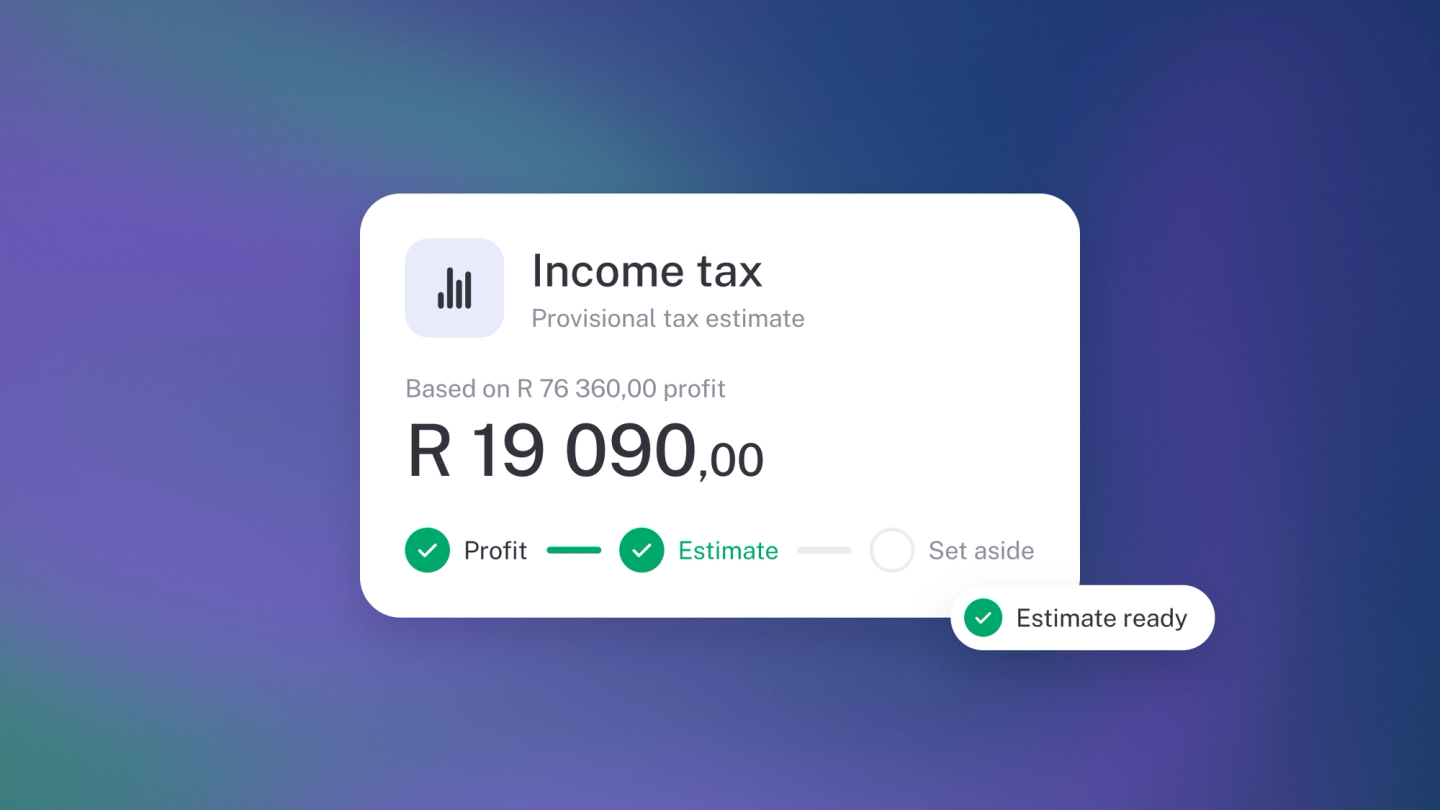
Income tax is the return most people leave until the year is over and the paperwork is cold. stub turns it around: tell it who you file as once, and every return you owe is scheduled, prepared from your ledger, and waiting for you before the deadline rather than after it.
1. Turn on Income Tax
- Go to Settings → Finance → Tax.
- Click Enable next to Income tax.
- Choose your Business type — how you file decides which returns and rates apply.
- Choose your tax regime if your country has more than one (in South Africa, this is where a small business corporation or turnover-tax election goes).
- Enter your Tax number.
- Set your Financial year end — the day and the month.
- Under Submissions to schedule, tick the returns you file. In South Africa those are the provisional returns — the estimated payments SARS asks for during the year — and the annual income tax return.
- Under Optional tags, tick any tags you want stub to create so you can tag the transactions a return asks about by hand.
- Click Enable.
stub creates a schedule for each submission you ticked, so every return has a due date from the moment it's set up.
2. Add or change a submission
Income Tax is set up as long as one return is scheduled. To file another one, or to change a cadence:
- Under Tax, open the ··· menu and choose Schedule.
- Pick the submission your country offers, or set your own cadence.
- To change or remove a schedule later, click it in the list.
Removing every schedule turns Income Tax off — the enabler comes back in its place.
3. Read your income tax position
Go to Reports in the sidebar and, under Tax, choose Income Tax Summary — your estimate, provision and tax computation. Set the period to match the return you are filing.
Each scheduled return also appears as its own prepared report ahead of its due date, and on the Returns tile on Insights, badged Due, Overdue or Filed. See VAT & Sales Tax reports.
Download it
Click ··· → Download at the top right, choose PDF or CSV, set the dates and click Download.
Tip: Your financial year end here is the same as the one on Settings → Finance.
Note: Income Tax here is your business's own tax. The tax you deduct from your employees' pay is handled by payroll, which works it out on every payslip and prepares those returns. See Set up and run payroll.