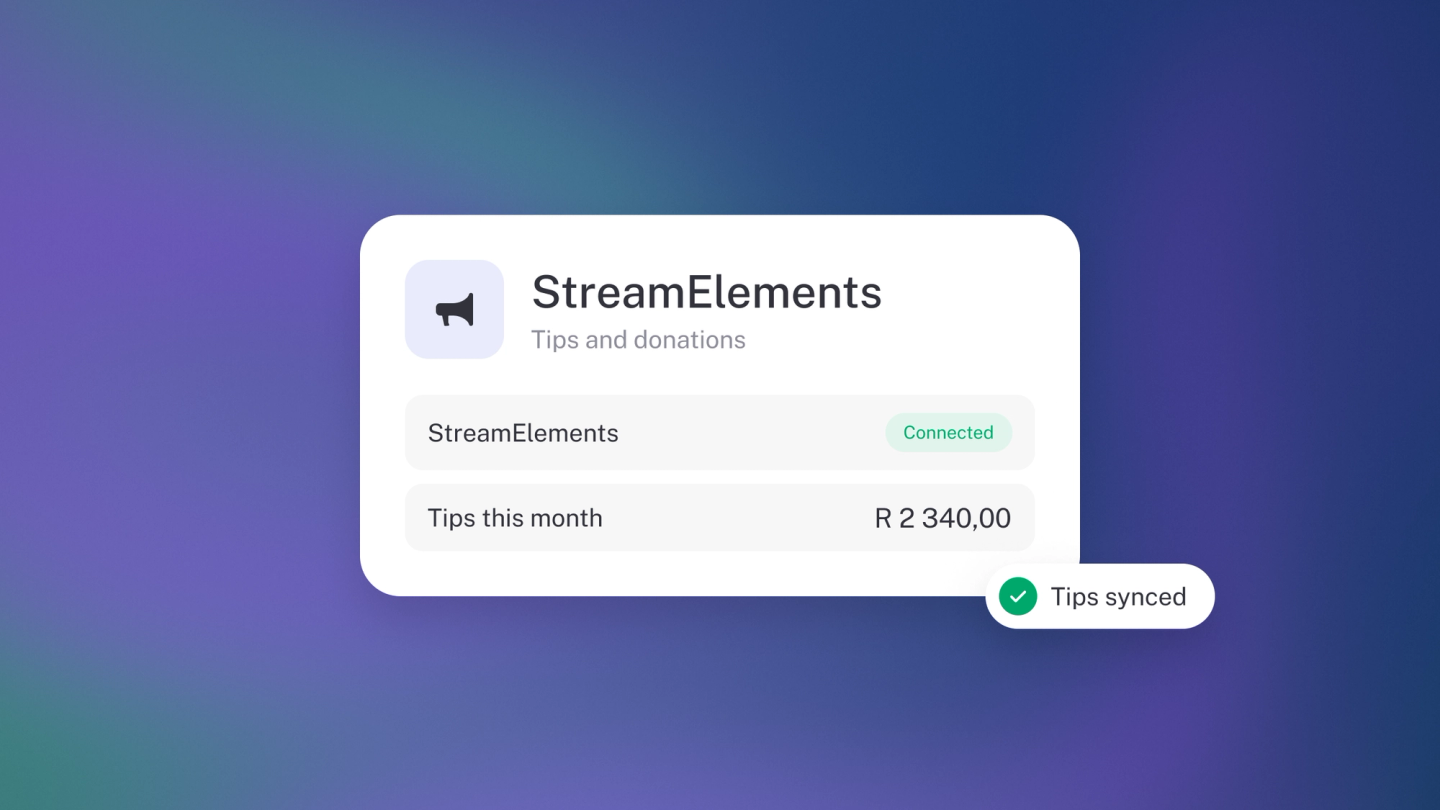
StreamElements runs the alerts and overlays on many creators' streams — the box that pops up on screen when someone tips. stub's payment page is a link your viewers can pay or donate through, straight to your business. Connect the two and every payment or donation made on your stub payment page triggers your StreamElements alert, live on stream.
Without the connection, a payment through your page lands quietly in your books and your stream never knows. With it, the viewer gets their on-screen moment — and everyone watching is reminded that the link works.
The money side needs no extra wiring: payments through your payment page are already recorded in stub. This connection adds the on-stream notification, nothing more.
Before you connect
StreamElements needs your payment page to be live first. Enable Online Payments, with a payment link, under Settings → Payments — the app will point you there if it isn't on yet. See Payment links.
Connect StreamElements
- Go to Settings → Apps and scroll to Everyday Tools.
- Click Connect on the StreamElements card.
- Enter your StreamElements Account ID and StreamElements JWT Token — you'll find both in your StreamElements dashboard, in your account settings.
- Click Save.
Test it
Open the card again and click Test. stub triggers the alert you already have set up on StreamElements — watch your stream overlay, or check the StreamElements dashboard for the test data. If the test fails, the error shows right there; the usual culprit is a mistyped token.
Disconnect
Open the StreamElements card — its button reads Manage once connected — and click Disconnect, then confirm. Your Account ID and JWT token are removed from stub, and your payment page keeps working as before.