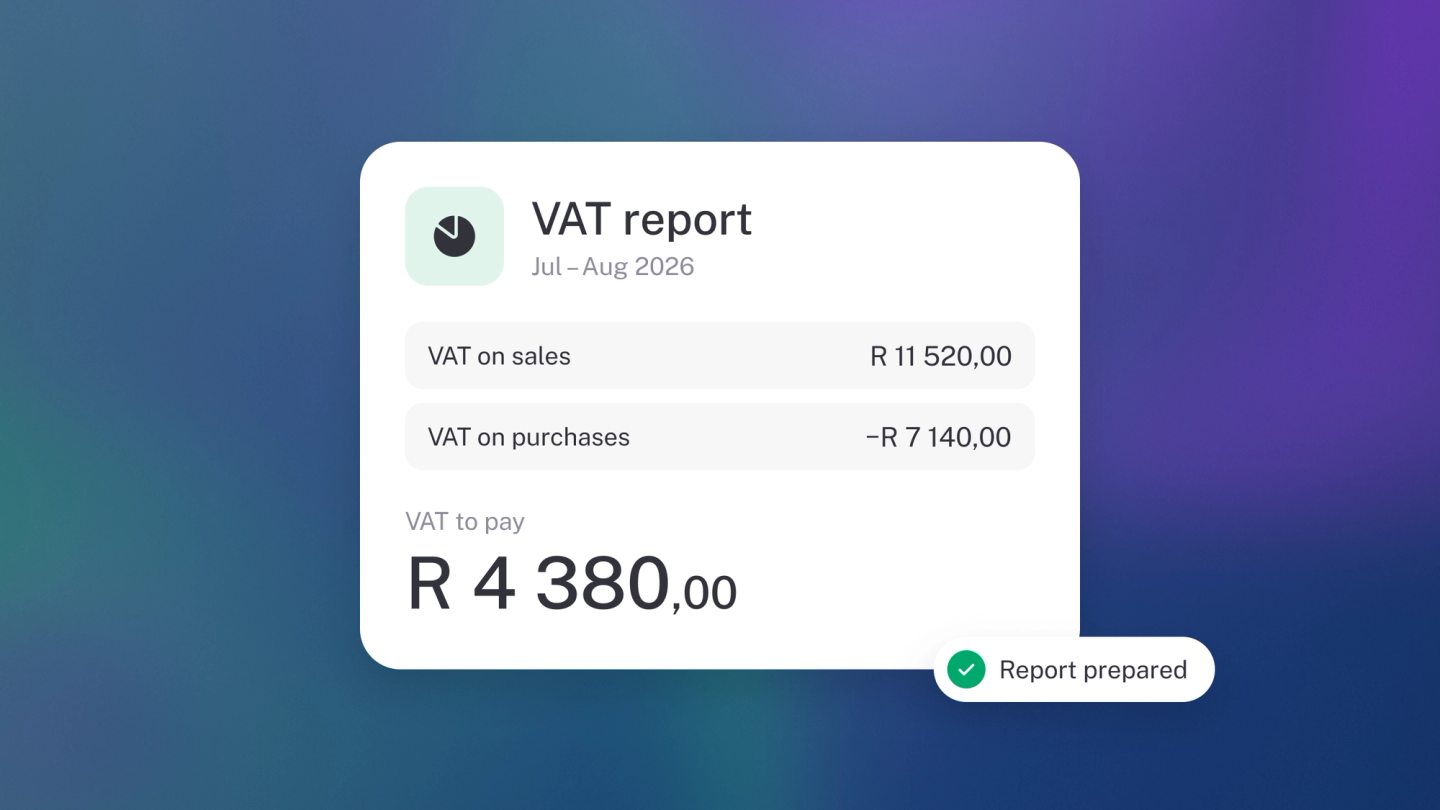
Tax is only frightening when the answer has to be reconstructed. These reports mean it never does: at any point in the year you can see exactly what you have collected on behalf of the tax authority, what you have paid out that you can claim back, and the difference you owe or are owed. Filing becomes reading numbers off a page.
The second thing they buy you is warning. The money you collect as VAT was never yours — you are holding it — and a tax report read mid-quarter tells you how much of your bank balance belongs to someone else before you spend it.
You need to turn Sales Tax on first. See VAT, GST & Sales Tax.
What to know before you file
- The report is downstream of your categorisation. Every figure comes from the rate on each item and the tax on each document. A mis-rated invoice in month one is a wrong return in month three; getting it right as you go is the whole job. stub also flags uncategorised transactions at the top of the report — clear those before you file.
- Read Sales Tax Activity, not just the Summary. The Summary gives you totals; the Activity report lists every taxed transaction behind them. That line-by-line read is where you catch a wrong rate or a mis-categorised expense while it is still fixable.
- Tax collected is not income. It sits in your bank account but belongs to the tax authority. Treating it as available cash is the most expensive mistake in this part of the product.
- Your period must match your filing period, not your financial year. Set the dates to the exact return period or the totals won't reconcile with what you're submitting.
- Income Tax Summary only appears once Income Tax is set up — see Income Tax.
Where to find them
Go to Reports in the sidebar — or, from any report, click its name at the top to open the dropdown — and look under Tax:
- Sales Tax Summary — the totals: tax collected, tax paid, and the difference.
- Sales Tax Activity — every transaction behind those totals, line by line.
- Income Tax Summary — your income tax position.
Then set your period to match your filing period.
Read your tax position
- Tax you collected — the tax you added to your customers' invoices. It was never really your money; you are holding it for the tax authority.
- Tax you paid — the tax included in your supplier bills and expenses. You can usually claim this back.
- The difference — if you collected more than you paid, you owe the difference. If you paid more, you are owed a refund.
Download it
Click ··· → Download, pick PDF or CSV, set the dates and download — the details are in Export & share a report.
Where the numbers come from
- Your rates — set up under Settings → Finance → VAT.
- Your items — the rate each product or service carries. See Default tax rates on items.
- Your documents — the tax on each invoice, bill, expense and income line. See Add VAT to an invoice.
Keep an eye on what's due
Set your filing schedule under Settings → Finance → VAT and each return shows on the Returns tile on Insights, badged Due, Overdue or Filed — click a row to open the return. The Sales tax due tile (it reads VAT due in South Africa) shows what you've collected, paid and owe for the period. Both are on the dashboard from Growing Business; on other plans, add them from the ··· menu → Tile.
Tip: Get the tax rate right when you categorise, not when you file. Fixing a quarter's worth of transactions the night before a return is due is nobody's idea of a good evening.