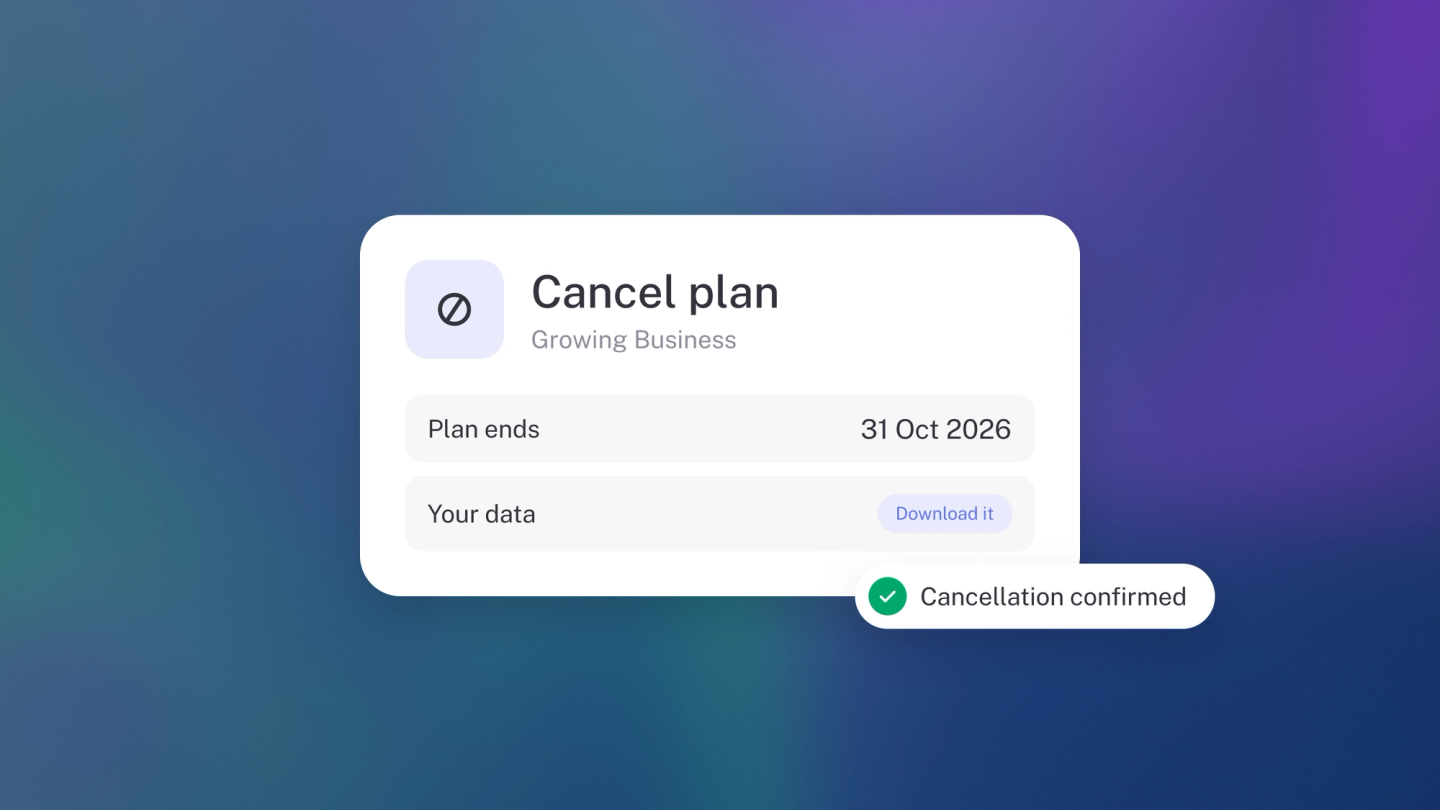
Leaving should be as straightforward as joining, so here it is plainly: cancelling, deleting and closing are three different things, and only one of them touches your records. Cancelling stops the bill and keeps the books. Trimming costs for a quiet season? Cancel — the free plan keeps your records. Closed the business down for good? Export everything, then delete it. Walking away while the business carries on? Touch none of this — hand over ownership instead. Whatever you're doing, work in this order, and export before you start.
Step 1: Export your records first
You are required to keep financial records for years after you stop trading.
Go to Reports in the sidebar and run Profit & Loss. Set the widest date range and download the PDF and CSV.
- Do the same for Balance Sheet and Trial Balance.
- Click General Ledger and use ··· → Export.
- Click Sales, then Expenses, and use ··· → Export on each.
- Click Customers, then Suppliers, and use ··· → Export on each.
- Go to Settings → Billing and download your Tax invoices.
- Click Files and download anything you still need.
Step 2: Cancel your subscription
- Go to Settings → Billing.
- Click Manage on your plan card.
- In the Change plan window, click Cancel subscription.
- Confirm.
stub asks once, and tells you exactly what you're agreeing to: “This ends your [plan] subscription right away. You lose its paid features now and your business moves to the free plan. We don't refund any part of the month you've already paid for. Your card won't be charged again.” Your records stay; the paid features stop. If you come back later, everything is where you left it.
Tip: Want to keep the paid features until the end of the month you've paid for? Move down to a cheaper plan instead of cancelling. That takes effect at the end of your billing period. Cancel only when you're ready to lose the paid features today.
If a partner manages your subscription, clicking Manage tells you so. Cancel with them.
Just want to spend less?
Cancelling isn't the only way to cut the bill. In the same Change plan window you can move down to a cheaper plan instead — nothing is charged today, you stay on your current plan until the end of the period you've paid for, and the cheaper one starts then. See Manage your subscription and plan.
Step 3: Delete a business, if you want to
Only do this once you have exported everything — deleting is permanent.
- Go to Settings → Business.
- Scroll to the Danger heading.
- Click Delete.
- Type your business name exactly as it appears.
- Click Delete business.
stub has two guardrails here: only an owner can delete a business, and a business that still has a paid subscription can't be deleted at all — cancel first, then delete. See Resetting or deleting your business.
Step 4: Close your login
Go to Settings → Profile to see your account details.
Note: There is no self-service delete for your personal login. Contact support and ask them to close it. Cancel your subscriptions and delete or hand over any businesses first, so nothing is left running in your name.
If you are leaving but the business isn't
Don't delete anything. Make someone else an owner and step back. See Add or change a business owner.
Tip: Cancelling and deleting are not the same. Cancelling stops the bill and keeps the books. Delete only when you are certain, and only after you have exported.