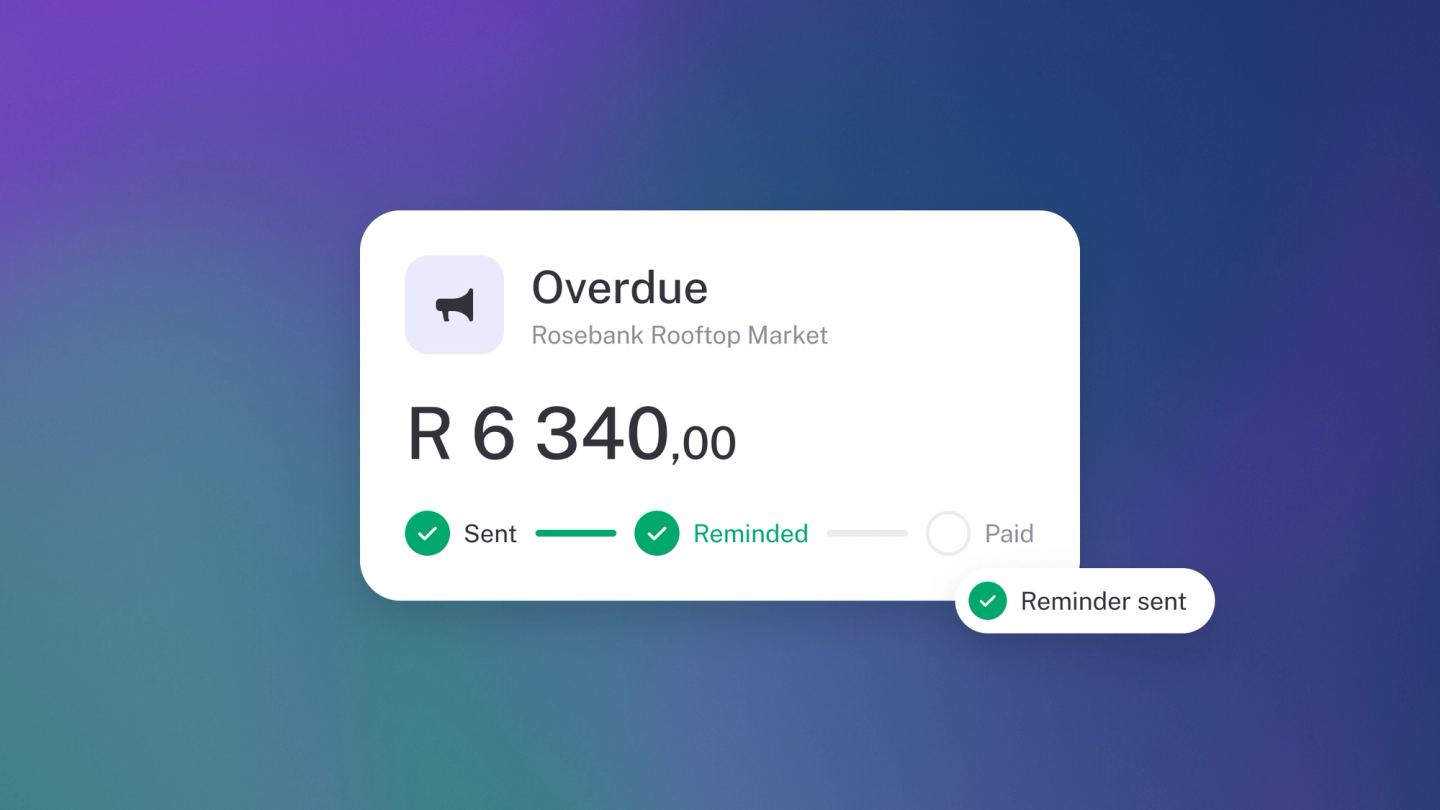
Sending an invoice is half the job; getting it paid is the other half. The Sales list shows where every invoice stands at a glance, and stub can do the polite chasing for you — so following up stops depending on your memory.
Read your invoice statuses
Open Sales in the sidebar — every row carries a status badge:
- Due in N days / Due — Sent and not yet due.
- Sent — Sent, no due date passed yet.
- N days overdue — The due date has passed and it is unpaid.
- Partially paid — Some money has come in, some is still owed.
- Paid — Paid in full.
- Settled — Marked as settled.
- Over paid — You received more than the invoice total.
- Written off — Written off as uncollectable.
- Cancelled — Voided.
Overdue invoices show in red, so a glance down the list tells you what needs chasing. When an invoice ends some other way — settled, written off, cancelled — see Settle, write off or cancel an invoice.
Find what's outstanding
There is no separate page for unpaid or overdue invoices — Sales is one list, and the controls along the top narrow it. Filter by status, customer, tag or account, sort by date or amount, and use the month selector at the top right to change the period. Save a filter you use often as a view, so it is one click next time.
You can also see what's late on your dashboard: the Invoices tile on Insights lists your overdue invoices as of today. Change it to Upcoming under its ··· menu → Configure → Show to see what's coming instead. See Receivables.
Set up automatic reminders
Reminders are set per invoice, in the invoice itself — so you choose which customers get nudged and how often. Scheduled reminders come with Steady Startup.
- Open the unpaid invoice.
- In the Options panel on the left, click Payment reminders.
- Choose Daily, Weekly, Monthly or Yearly.
- Set Ends after to cap how many reminders go out.
Reminders start on the due date and stop as soon as the invoice is paid. stub tells you if it can't send them — if the customer has no email address, or if the invoice hasn't been sent yet.
Send a reminder now
Open the sent, unpaid invoice and click ··· → Payment reminder. The reminder goes to the customer's saved email address; to change it, click the pencil beside the address. Click Preview to see the exact email first — it shows the invoice number, the due date and a View invoice link for your customer — then send. Unlike the schedule, this one-off nudge works on every plan.
Tip: Chase early. The longer an invoice sits, the harder it gets to collect.