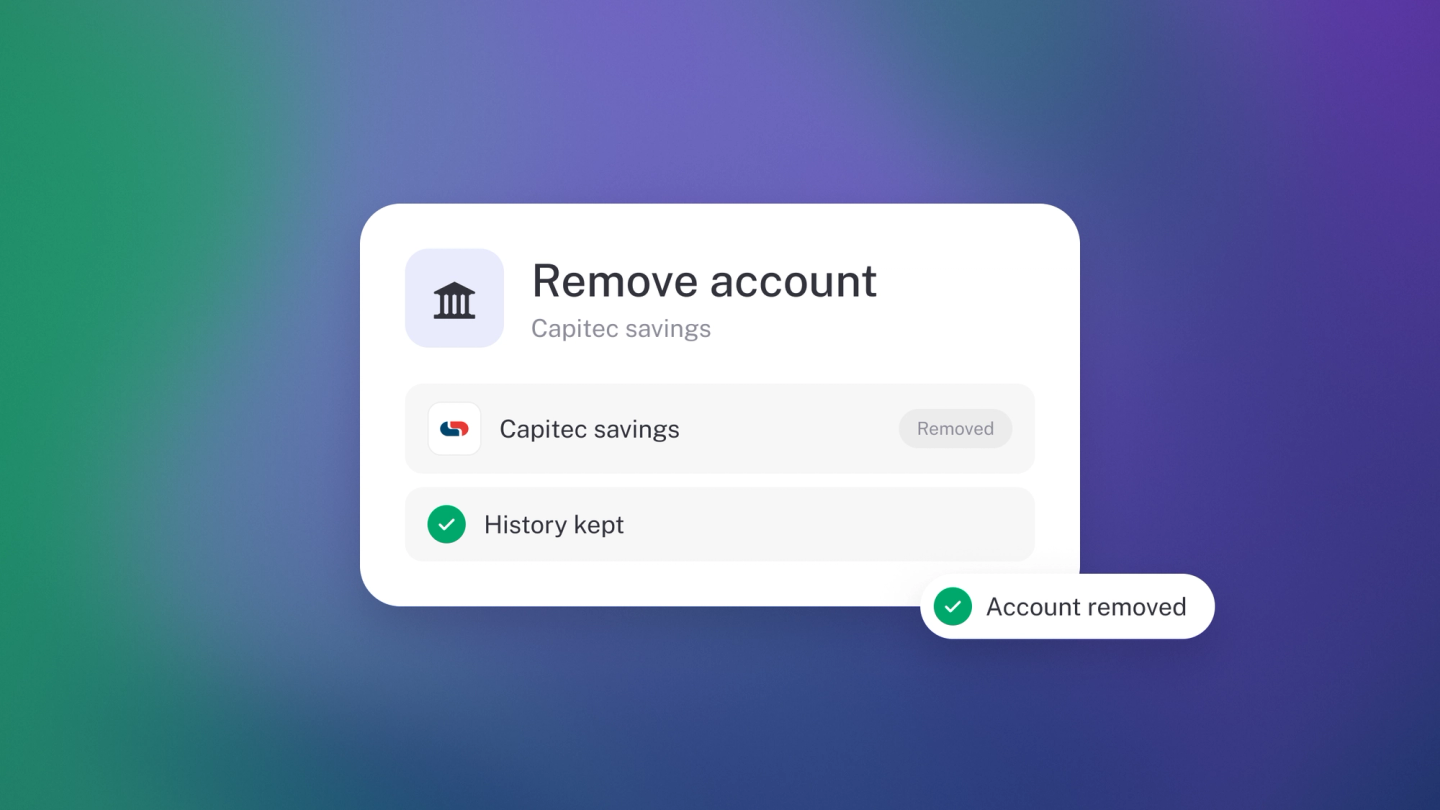
One wrong connection can pour months of personal spend into your books — and that skews your profit, your Balance Sheet and anything you send to SARS. The fix takes a few minutes, as long as you do the three jobs in this order. Only an owner can manage bank accounts.
1. Stop the sync
- Go to Settings → Bank Accounts.
- Click the account you want to remove.
- Turn off the Sync account toggle. New transactions stop arriving while you clean up.
Leave the account in place for now — stub won't let you delete it while its transactions are still in your books, and once it's gone they become harder to filter.
2. Exclude the transactions it brought in
- Go to Transactions — under the Data heading in the settings menu.
- Add the Account filter and choose the account.
- Widen the date range to cover every month the feed brought in — the list only shows the period you're viewing.
- Check the list is only what you mean to remove, then tick the select-all box at the top.
- Click the ... transactions button that appears and choose Exclude.
Excluding takes the transactions out of your general ledger, so your reports behave as if they were never there. Excluded something by mistake? Select it again and choose Include to put it back.
Warning: Select-all covers the filtered list for the visible date range only. Sweep every month the account was connected, or the stragglers will block the next step.
3. Delete the account
Back at Settings → Bank Accounts, open the account, click the bin and confirm Delete. If anything still posts to the account, stub blocks the delete and links you straight to the leftovers. Deleting can't be undone — if it's a real business account you've closed, archive it instead and keep the history. See Connect a bank feed.
Why bother
- Personal spend in your books makes your profit look wrong.
- Your Balance Sheet and Profit & Loss should show the business only.
- Anything you send SARS or a lender comes off these numbers.
Tip: Connect business accounts only, and scan your transactions weekly so a stray personal card gets caught early.