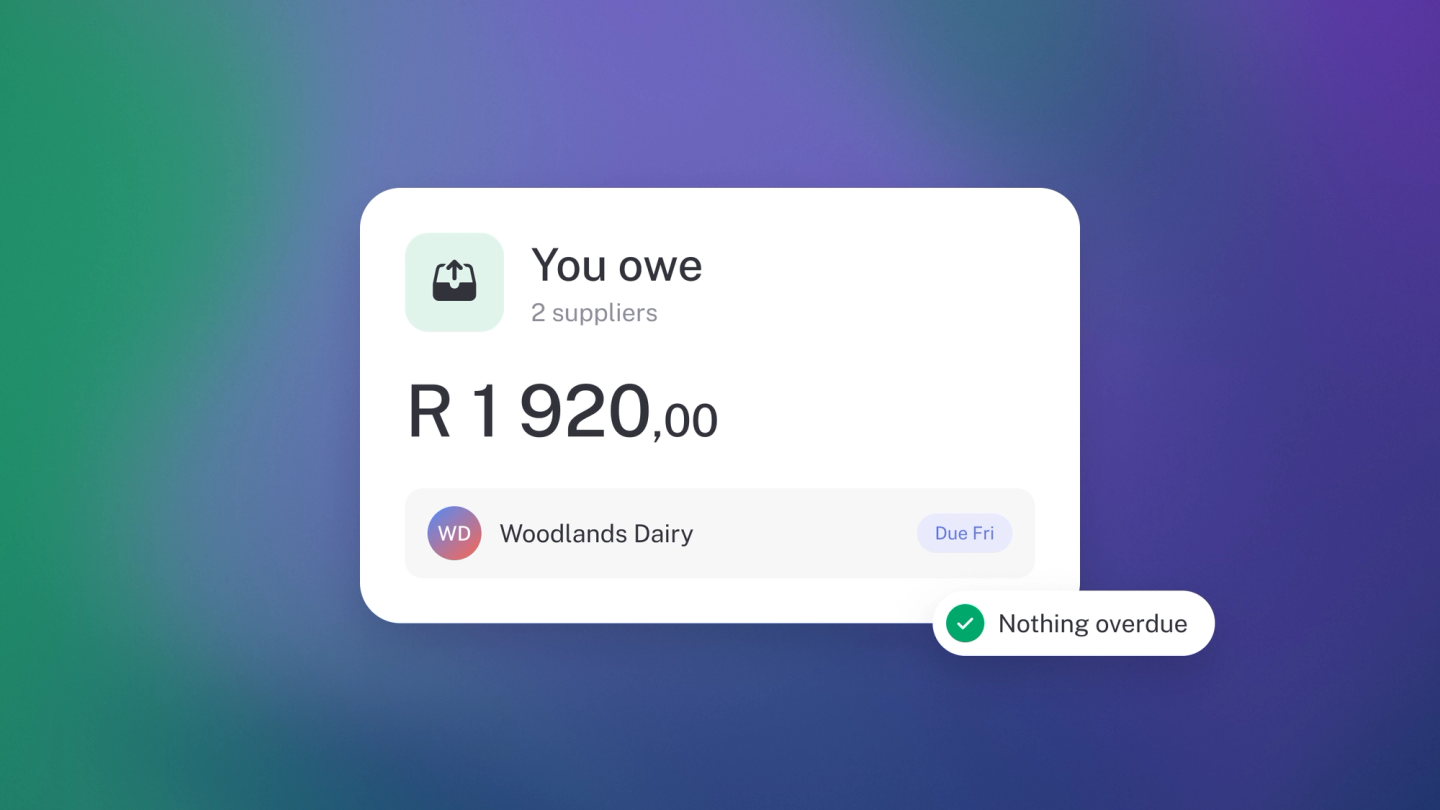
Knowing what you owe — and when it falls due — is how you avoid the two classic supplier surprises: the angry phone call about a late payment, and the month where three big bills land at once. It's also what turns a supplier relationship into an asset. Owners who pay on time get better terms, and you can only pay on time if you can see what's coming.
stub splits payables across two reports so you can see both at a glance: what's already late, and what's on its way. Read them alongside the Cash Flow report before committing to a big purchase.
What to know before you trust the total
- These reports only show bills recorded in stub. A supplier invoice still sitting in your inbox isn't in your books, so it isn't here either. A total that looks too low almost always means exactly that — see Record & track supplier bills.
- They count bills, not cash. A bill you've already paid stays on the list until the payment is recorded against it. If something you've settled is still showing, record the payment and it drops off immediately.
- Overdue and Upcoming are two views of one question, split by due date. A bill moves from Upcoming to Overdue on its own the day it falls due — nothing to reclassify by hand.
- Payables is not the same as expenses. These reports are about commitments outstanding right now; your Expenses report is about what a period cost you. The same bill appears in both, at different times and for different reasons.
See what's already late
Go to Reports in the sidebar and pick Overdue Bills — or, from any report, click its name at the top and choose Overdue Bills from the dropdown. It lists everything past its due date as at the date you pick, grouped by supplier — so you can see at a glance who you owe and how old the debt is. Tick Total under Options to add a total column, and click a supplier to open the bills behind the balance.
See what's coming up
Open the same dropdown and choose Upcoming Bills. Tick Unpaid only under Options → Include to hide anything already settled, and switch Compare to Monthly or Yearly to see how your recurring commitments land over time.
Filter by tag
On either report, use the filter button in the header to narrow the list to one Tag — one project, branch or campaign.
Pay one off
Click through to the bill and record the payment — see Pay supplier bills. Once the payment is recorded, the bill drops off the list on its own.
Tip: Check Upcoming Bills against Cash Flow before you commit to anything large. The question isn't whether you can afford it today, it's whether you can afford it in the week the other bills land.