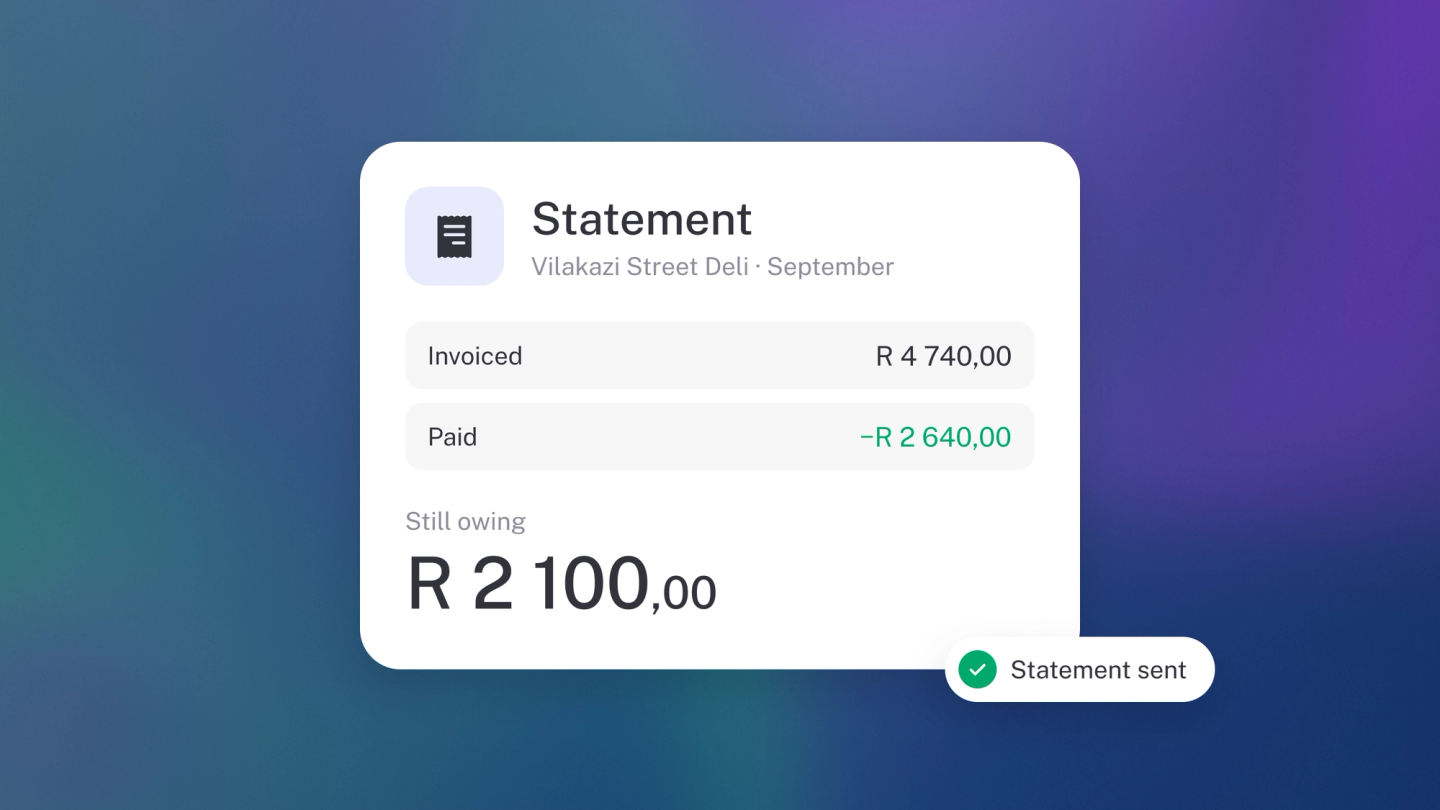
When a customer queries their balance, or a supplier claims you're behind, one page settles it: the statement. It's the full dated history of an account — everything billed, everything paid — ready to check, download and send. No spreadsheet-stitching required.
Run a customer statement
Click Customers in the sidebar, open the customer, and click Statement at the top of their page. The Account Statement opens: every invoice and payment in date order, with a running balance and the total at the bottom.
Run a supplier statement
Click Suppliers in the sidebar, open the supplier, and click Statement. Same page, from the other side: what you have been billed and what you have paid. This is what you reconcile against when a supplier says you owe more than you think you do.
Set the period
The statement opens on the current month. Use the date range control at the top to set the Start date and End date — the statement rebuilds as you change them. If an older invoice seems to be missing, widen the range first.
Send it
Click Send at the top of the statement and switch on Share a link to this statement in the window that opens. Every way of sending it carries that link, so the rest of the window appears once the switch is on.
The email is then ready to go, addressed to the contact's email on file — check the address, add a message if you like, and click Send. The same window covers every other way to deliver it: copy the statement Link and paste it anywhere, download the PDF for a copy, or share it over WhatsApp. The open icon shows the statement the way they will see it.
Click Preview to see the statement email exactly as it will arrive before it goes. Nothing is sent until you click Send.
The link opens on the current month, whatever dates you had set, and whoever opens it can change the dates and download a PDF or CSV themselves. Your last email shows at the top of the window with whether it was delivered; the history icon beside it lists the ones before.
Tip: Sent the link to the wrong person? Click the refresh icon beside it for a new one. Anyone opening the old link is told it's no longer active.
Download it
Click ··· → Download at the top of the statement and choose PDF or CSV — either covers the dates you've set. The PDF is for a customer querying their balance, or for a supplier when you are reconciling accounts; the CSV is the one to hand to a bookkeeper.
If you show bank details on your invoices, they print at the bottom of a customer statement too — so the customer can settle straight from it.
Get to a statement from a document
Open any invoice, bill, quote or credit note for that contact and click ··· → Statement.