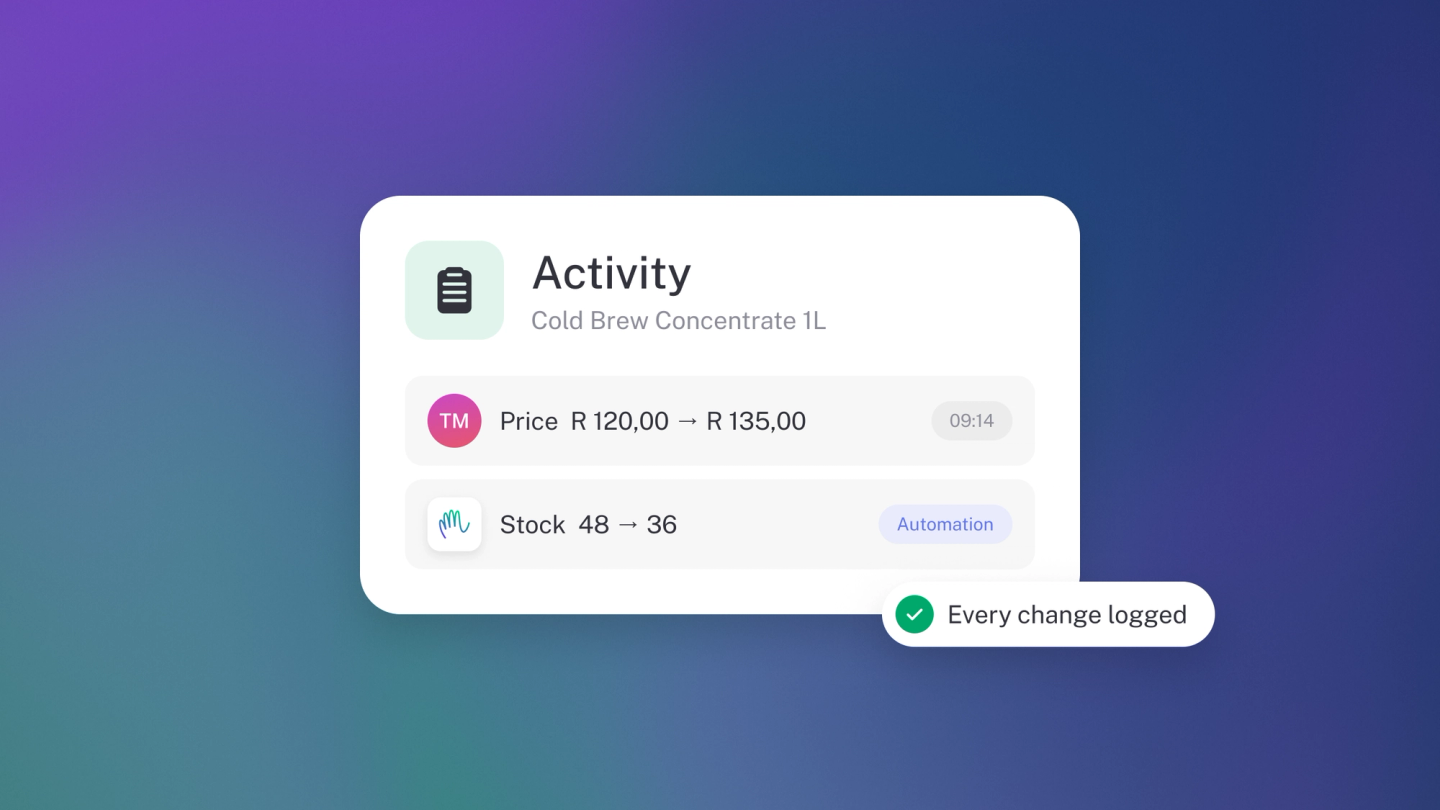
When more than one person works on your books, sooner or later you'll want to know who changed something. The activity log keeps that record for you. Whenever someone creates, edits, approves or deletes something, stub writes down who did it, what they did and when. For an edit, it also keeps the value before and after.
The activity log comes with Steady Startup and every plan above it. It isn't part of the free plan or Growing Business (Legacy). See the pricing page for what each plan includes.
See a record's activity
Where you find it depends on what you're looking at.
- Invoices, quotes, orders, pro formas, credit notes, bills, purchase orders, debit notes, reports and AI flows: scroll to Activity at the bottom of the page.
- Income, expenses, bank transactions, assets, files and leave requests: Activity sits at the bottom of the editor.
- Customers, suppliers, products, employees, payslips and pay runs: click the ··· menu at the top of the page and choose Activity.
- Things you edit in a pop-up, such as accounts, tags, loans, bank accounts, team members, connected apps, leave types, sales tax rates, journal entries, stock entries and report schedules: click the History icon (a clock) at the bottom of the window.
If nothing has happened to a record yet, the Activity section at the bottom of a page doesn't show at all, and the History icon opens with "No activity yet".
See everything that happened in your business
Go to Settings → Business and click View next to Activity. You get every change made in the business, newest first, grouped by day, one month at a time.
- Use the month picker on the right to go back to earlier months.
- Use the filter on the left to narrow it by Person, by who did it (People, Apps, stub or Schedules), or by Type.
- Click Show more at the bottom to load more.
- Click any row to see the record it's about and exactly what changed.
To see everything one team member has done, go to Settings → Team, click ··· on their row and choose Activity. On a notification, See what changed in its menu takes you to the changes behind it.
Only owners and administrators can see the business-wide activity and a team member's activity. See Manage your team and permissions for what each role can do.
Read an activity row
Each row is one sentence that says who did what, and when.
Who did it
- A team member: their name and avatar.
- stub: shown with a small dot. These are things stub did itself, like categorising a bank transaction, sending a recurring invoice or running a scheduled report.
- A connected app: the app by name, such as your bank feed or payment provider.
- A connected assistant: an AI assistant you've connected to your books. See Set up MCP.
- stub support: a change our support team made for you.
- Someone: a customer opened a document you sent them. stub knows the document was opened, but not who opened it.
What they did
- One change reads in full, for example "Thandi changed the category from Fuel to Meals".
- Several changes at once read as a count, for example "Thandi edited 4 fields". Click the underlined word or the arrow next to it to see each change.
- A new record reads as the event, for example "Thandi created the invoice". Open it to see what it was created with.
When you open the changes, each line shows the field, then the old value struck through, an arrow, and the new value. Added means the field was empty before. Removed means it was cleared.
When
The time shows as relative, for example "2 hours ago". Hover over it to see the exact date and time.