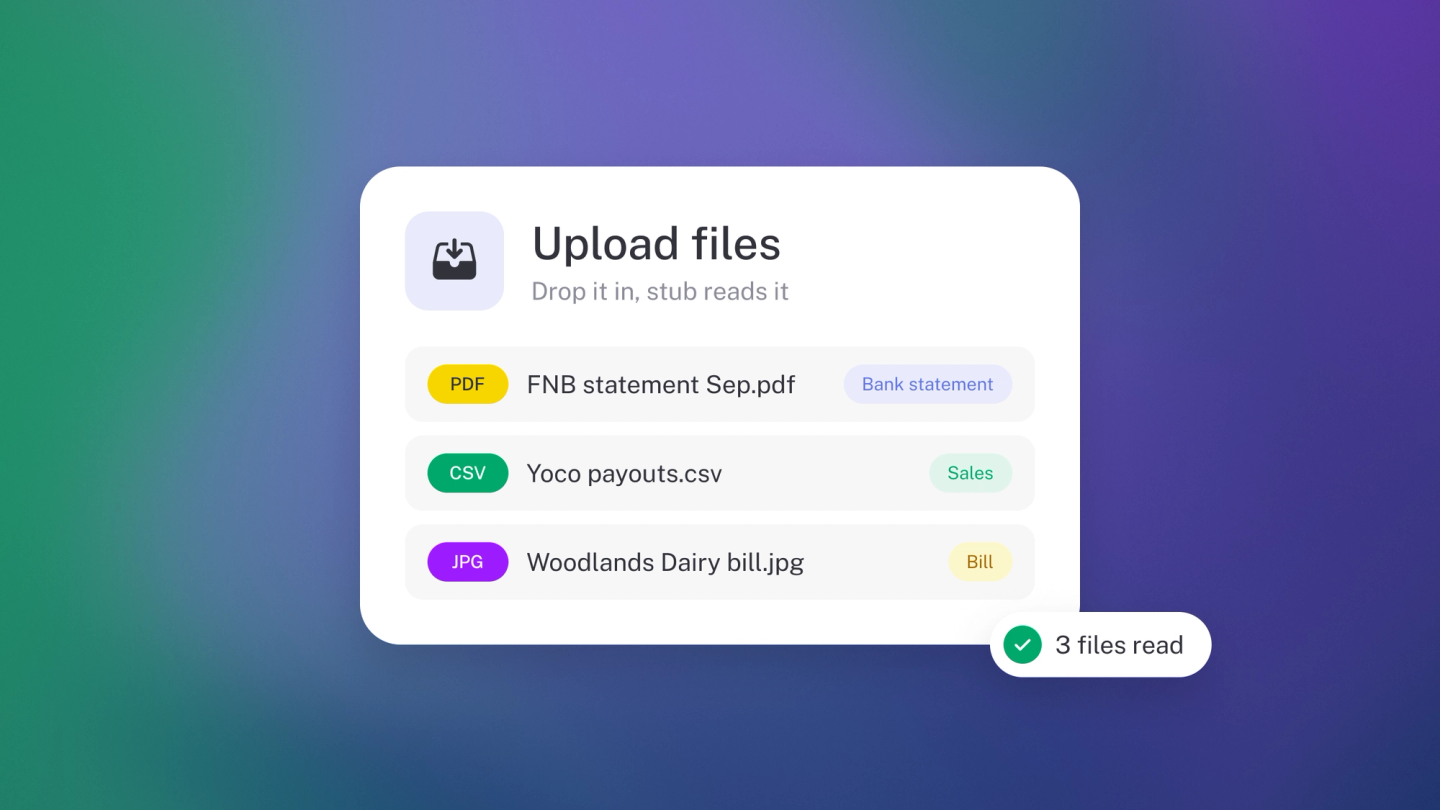
Uploading files is the easiest way to get data into stub.
You can send almost any document — a photograph of a receipt taken in the car park, a supplier's PDF invoice, a CSV from your bank, an Excel sheet of products, a photograph of hand written record of cash payments — and stub reads what's inside, extracts the data and adds it to the right place for you. You don't need to type anything in, and you don't need to get the file into a particular shape first (because you've got better things to be doing that that).
Click Files in the sidebar to see everything you've sent in. It's a page of its own, and it comes with Steady Startup.
Almost any file, even a photograph
stub accepts PDFs, photos and images, CSV, OFX and QFX, Excel, Word, PowerPoint and plain text. Photograph a receipt and stub reads the amount, the date and the supplier off the picture — no scanner, no flat surface, no good lighting required.
CSV, OFX and QFX files give the cleanest results because the data is already structured. OFX and QFX are the statement formats many banks offer under "Download transactions" or "Export to Quicken/Money", so if your bank has no live feed, that download is the quickest way to get a month of transactions in. PDFs, spreadsheets and photographs all work too.
Two limits worth knowing: 2MB per file, and 10 files at a time. A phone photo or a PDF invoice fits comfortably; a full-resolution scan might be dancing on the line (you can usually compress it pretty easily if need be).
Email it or upload it
Email it. Your business has its own email address — copy it from the top of the Files page. It looks like your-unique-name@docs.stub.africa and it's unique to your business. Forward anything to it and it lands in Files on its own.
Save that address as a contact on your phone and forwarding becomes one tap. Better still, give it to your suppliers as your billing contact — subscriptions and recurring bills then file themselves without you touching them.
Upload it. Open Files and drag the file straight onto the page, or click File (or press U) and pick it. You can select several files at once. A card appears as you drag and tells you where the files will land: the open folder, a locked folder, or the open Ask stub chat. If the drop can't go through it tells you why (more than ten files, uploads paused, or your role can't upload).
Drop a file onto what you're working on
You don't have to go to Files first. Drag a file onto an invoice, bill, quote or any other document and it attaches to that document straight away. Drop it onto an open income, expense, asset or journal entry form and it's added to the form and saved with it. Files attached this way are stored in Files, and stub doesn't read them for data.
Or ask stub about it. Drop a file while Ask stub is open and it goes into the chat instead. It shows in the message box before you send, so you can add a note, such as "Record this as a fuel expense", or remove it if you picked the wrong one. See Ask stub.
Easily delete imported data and files together
If you accidentally add a file and import data that you don't need, it's as simple as deleting the file and checking the box to delete the data that came from the file. Easy as pie.
Keep it organised with folders
Once documents start arriving, folders keep Files readable. Click the folder button in the header (or press F) to make one — "2026 receipts", "Bank statements", "Legal". Folders can sit inside folders (you can have as many levels as you like).
Moving things around is drag and drop. Drag a file onto a folder to file it. Drag a folder onto another folder to nest it. Drag either onto a step in the breadcrumb at the top of the page to move it back up a level. If you'd rather not drag, click the three dots (···) on a file or folder and choose Move, then browse to where it belongs.
The same ··· menu renames a file or folder, downloads a file, and deletes either. To clear out several files at once, select them and use the actions that appear at the bottom of the screen.
Lock a folder
Some documents shouldn't be seen by everyone in the business, like contracts, payroll paperwork or shareholder agreements. Lock the folder and only the people you choose can open it. Everyone else doesn't see the folder at all.
To lock a new folder, tick Lock this folder when you create it. To lock one you already have, click its ··· menu and choose Lock. Then tick who has access. Owners always have access and can't be removed, so the business can never lose a folder when someone leaves. Administrators aren't added automatically: tick them if they need it.
A locked folder shows a padlock on the folder and in the breadcrumb. To change who has access, or to unlock it, use the same Lock option in its ··· menu. Unlocking makes the folder and everything in it visible to everyone who can see Files, so stub asks you to confirm.
Good to know: only owners can lock a folder. Locking a folder, or changing who can open it, comes with Growing Business and up. Unlocking works on every plan, and folders you've already locked stay locked. You can't lock a folder inside a locked folder, and a folder can't be moved into one.
Store your other important documents too
Files isn't only for receipts and invoices. It's a sensible home for the documents you need to find in a hurry and rarely think about otherwise: your company registration, tax registration certificates, your lease, insurance policies, licences, shareholder and director paperwork, contracts.
There's nothing to extract from these, and you don't want stub trying. When you upload, uncheck "Import data" in the upload window — the file is then stored as a document and nothing else. Leave it checked for anything you want stub to read, like a receipt or a statement.
A folder you've locked stores what you drop in it without reading it, so you don't need to untick Import data.
FAQ
- Does a photograph really work? Yes. A phone photo of a receipt is one of the most common ways people get expenses into stub.
- Can my team see these files? Yes — anyone you've added to the business can see Files, except folders you've locked, which only the people you choose can open. See Add your team.
- What if I email in the wrong document? Delete it from Files. Nothing else in stub is affected.
- Is there a size limit? 2MB per file, and 10 files per upload.
- How do I stop stub reading a document? Uncheck Import data when you upload it.
Note: Getting a file into Files is not the same as recording the expense. Turn a receipt into a transaction in Record income and expenses.