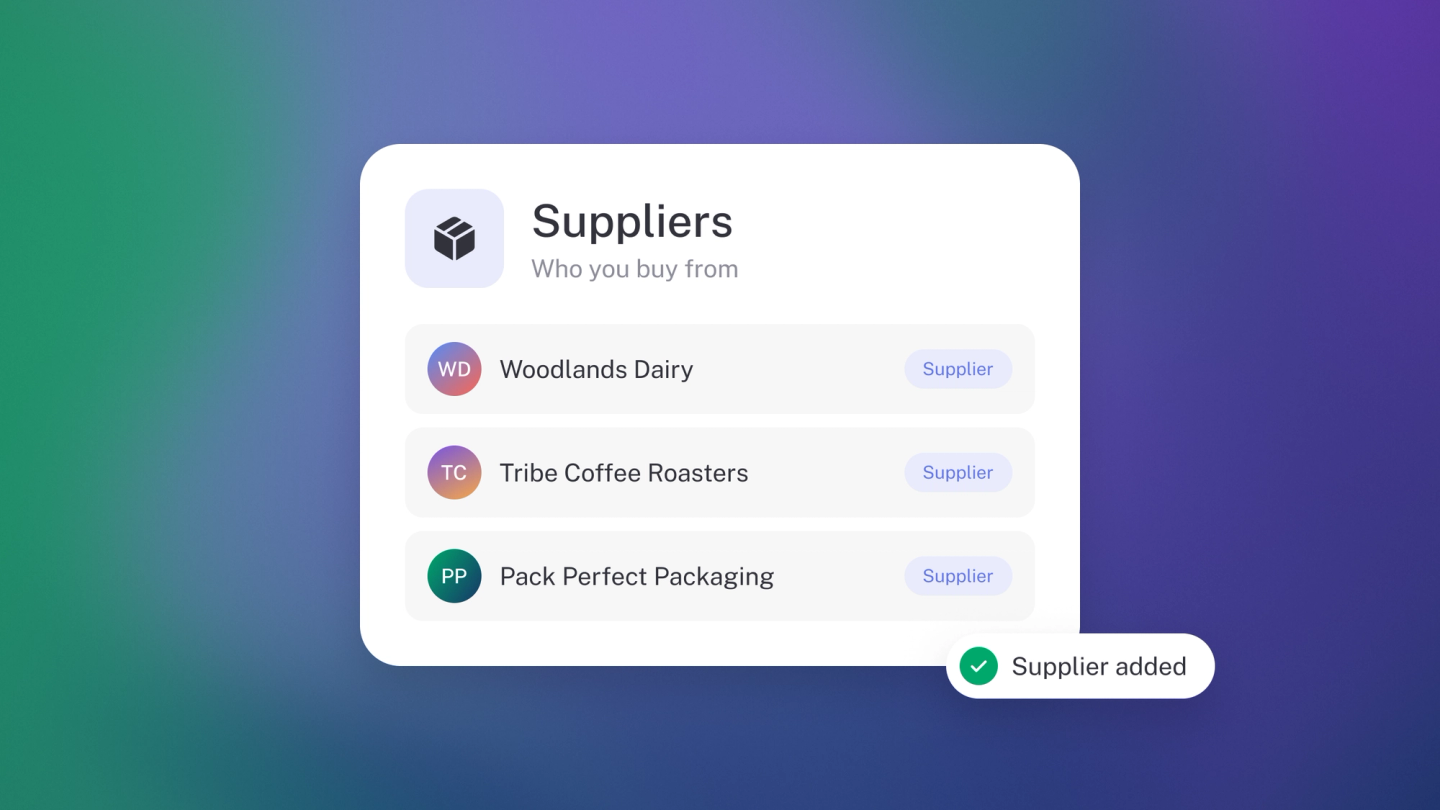
Suppliers are the other half of your books — the businesses behind every bill and expense you record. Get them into stub once and their details fill themselves into every document from then on, and everything you owe is visible in one place. To record a bill or an expense against someone, add them as a supplier first.
Add a supplier
- Click Suppliers in the sidebar.
- Click Supplier. (Or press N.)
- Fill in the basics:
- Name — the business you buy from.
- Email address.
- Telephone — their main phone number.
- Address.
- Need more? The extra fields sit behind the add buttons at the bottom of the form:
- Contact — a contact person, with their own email address and phone number (separate from the business telephone above).
- Sales Tax Number — their VAT number. Labelled VAT Number in South Africa.
- Registration Number — their company registration number.
- Website — their web address.
- Save.
Only the name is essential to get going — you can always come back and fill in the rest. And if you can't find a field, it's behind those add buttons at the bottom of the form.
Edit a supplier
Head to Suppliers, click the ··· on the supplier's row and choose Edit — or open the supplier and click their details card on the right. Change what you need and save.
Star your main suppliers
Click the star at the top of a supplier — or on their row in the list — to pin them. Starred suppliers sort to the top of your list — handy for the few you buy from every week.
Flag a supplier
Flagging marks a supplier so you and your team notice them — a disputed account, or bank details you want checked before anyone pays. You can filter the list down to flagged suppliers only.
Open the supplier and click ··· → Flag. A tick appears next to Flag while it is on; click it again to clear it. You can also flag from the ··· on the supplier's row in the list.
Tag a supplier
Tags group suppliers for reporting later, and they come with Steady Startup. Open the supplier and use the tag selector on the left panel — or click the tag icon on the supplier's row in the list. See Create & manage tags.
Set an opening balance
If you already owed a supplier money before you started in stub, record it as an opening balance. See Customer & supplier opening balances.
See what you owe a supplier
Open the supplier. The left panel shows Total outstanding, or a line per currency if you buy from them in more than one.
Create work for a supplier
Open the supplier and click Create to raise a Purchase Order, Bill or Debit Note, or record an Expense, without leaving their page. (Purchase Orders, Bills and Debit Notes need Steady Startup; recording an Expense doesn't.)
Start from the supplier's row
Don't need to open the supplier first? In the Suppliers list, click the ··· on their row and choose Bill or Purchase order. The document opens with that supplier already on it. Bills and purchase orders need Steady Startup.
Import your suppliers in bulk
Already have a supplier list somewhere else? Bring it across in one go — importing comes with Steady Startup.
Click Suppliers, then ··· → Import, and drop in your file — CSV, Excel, PDF, text or even a photo. stub reads it and creates the supplier records for you.
Export your suppliers
Click Suppliers, then ··· → Export to download your list as a CSV.