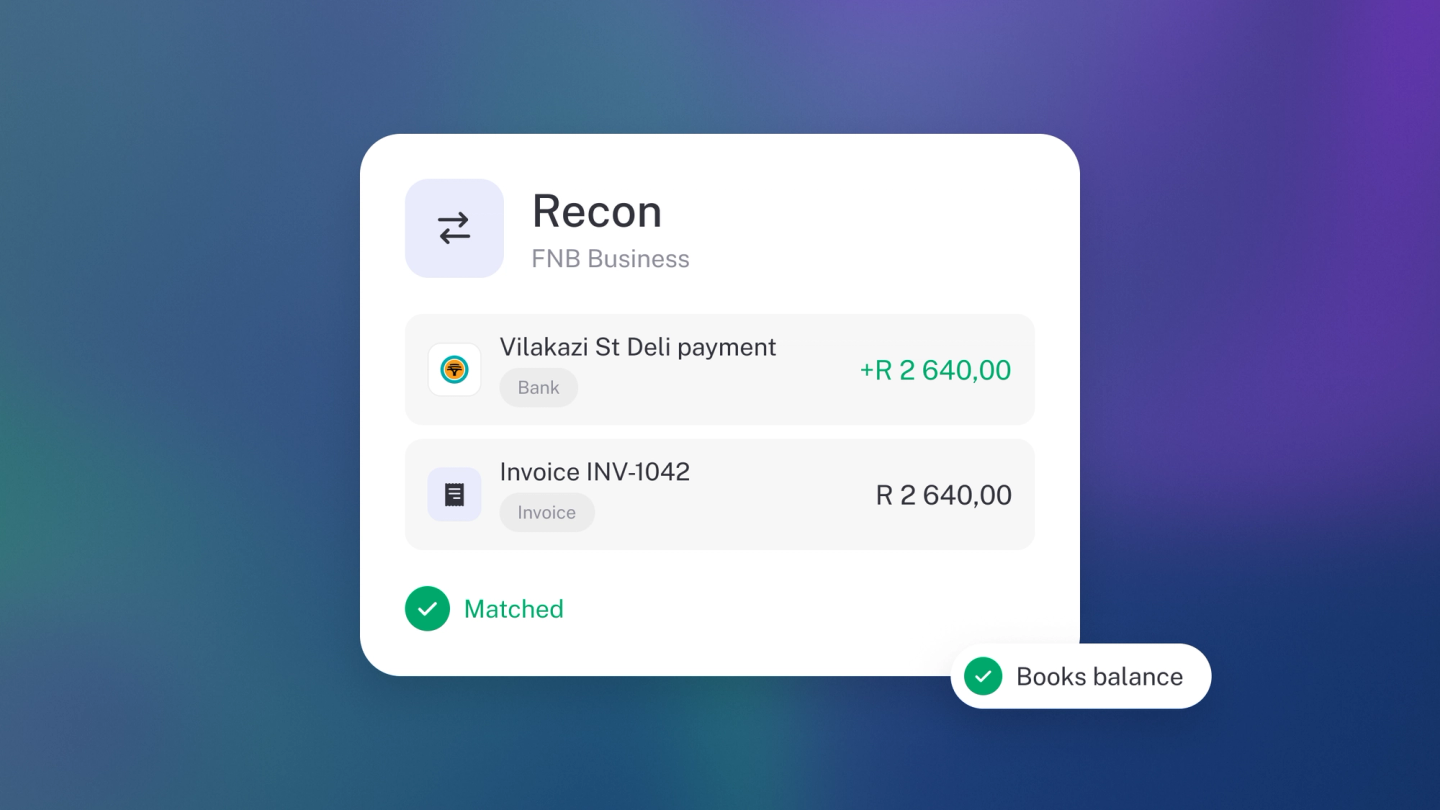
Reconciliation sounds like an accountant's word, but in stub it's mostly just categorising — making sure what stub says is in your bank matches what your bank says. Do it little and often, account by account, and every report you run is one you can actually trust.
Open an account
Click Insights in the sidebar. Each bank or cash account has its own tile, showing its balance and, in red, how many transactions are still uncategorised.
Click the tile to open Account Recon for that account. You can also reach it from Reports in the sidebar, under Useful, and switch to another account from its name at the top of the page. Account Recon is on every plan.
Read the summary
Pick the dates you want to check, and the top of the page gives you Opening balance, Money in, Money out and Closing balance for that range. Below it is every income and expense on the account.
Clear your uncategorised transactions
- Click Filter → Category → Uncategorised.
- Go down the list, setting the category on each row as you go.
- Where a transaction settles an invoice or a bill, tie it to that document rather than booking it straight to income or expenses. See Match bank deposits to invoices.
- Lots of rows that belong in the same place? Tick them and edit them all at once.
The count on the tile drops as you go. Anything missing from the feed altogether can be added from Create → Income, Expense or Entry.
Check the closing balance
Set the dates to match a bank statement and compare the statement's closing balance with stub's Closing balance. If they disagree, the gap is nearly always a transaction that came in twice, or one that never came in at all:
- Twice — stub marks a suspected duplicate with an alert icon on the row. Open the row's menu and choose Remove duplicate, or Confirm income / Confirm expense if it really is a separate transaction.
- Never — add it from Create, or drop the statement into Files (see below).
Money that moved the account without being an income or expense — a transfer between your own accounts, a journal or an invoice posting — sits behind the "other entries" alert above the list. Click View to see them.
Set a starting balance
If the Opening balance is wrong from the very start, the account is missing its opening balance. Add it under Settings → Finance → Opening balances, using the balance from your bank statement on the day your stub books begin. See Opening balances.
Check the whole picture
Go to Settings → Data → Transactions to see every transaction across all accounts in one list. Filter by Account or by Tag, and sort by date or amount.
Make it a habit
Reconcile weekly rather than annually. A stray transaction is easy to explain three days later and nearly impossible three quarters later.
Note: If your bank has no live feed, download a statement from your bank (OFX, QFX, CSV or PDF) and drop it into Files. stub reads the transactions off it. See Upload files to stub.