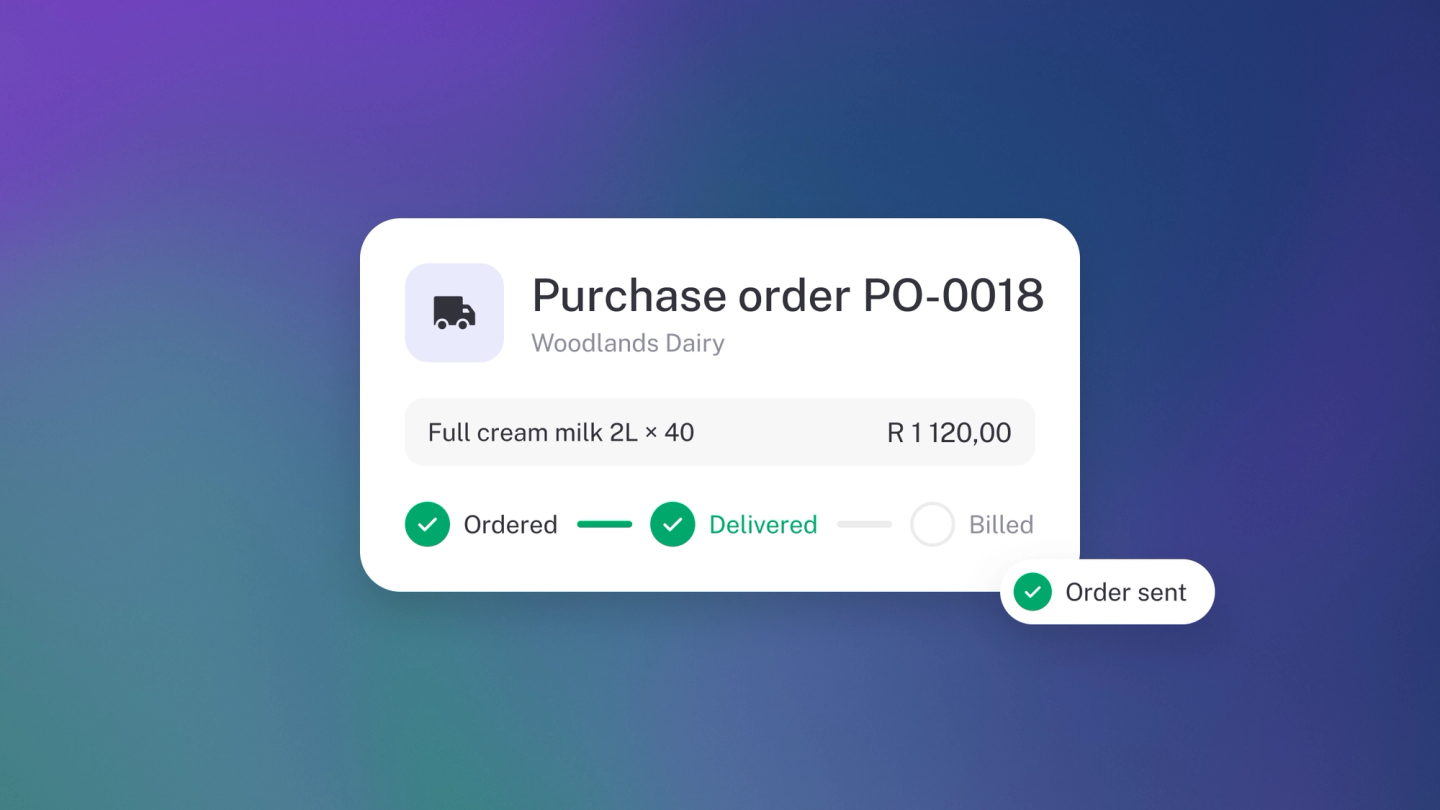
A purchase order is a document you send a supplier before you buy: this is what we want, in these quantities, at these prices. It isn't a payment and it isn't a bill — it pins down the deal before the goods ship, so there's no argument later about what was agreed.
You don't need one for a till-slip purchase. Raise one when you order stock ahead of delivery, when prices were negotiated, or when a supplier wants your order in writing. And when the delivery lands, stub turns the order into a bill for you, line by line, so what you owe always matches what actually arrived.
Raise a purchase order
- Click Expenses in the sidebar.
- Click Create → Purchase Order. (Or press N, then O.)
- Pick the supplier at the top, or add a new one.
- Set the date.
- Click Add item and enter what you are ordering, with quantities and agreed prices.
You can also start from the supplier under Suppliers, or from a stock item you are running low on — open the item under Products & Services and click Stock → Purchase Order.
Send it
Sending works just like an invoice: click Send, check the address, tweak the message, and deliver it by email, PDF or WhatsApp, or copy its private Link so your supplier can view and download it without a login. Click Preview to see the email before it goes. The ··· menu also has View, to see the order the way your supplier will, and Download for a PDF.
Record the supplier's answer
On the Status panel of the order, click Mark as accepted. To record a no, open the ··· next to that button and click Mark as rejected. The panel then shows Purchase order accepted on <date> — click Status to change it later.
Turn it into a bill
This is where the purchase order earns its keep. Once the goods arrive:
- Open the accepted purchase order.
- Click Bill on the Status panel.
- Check each line. Change the Quantity or Price on anything that arrived differently from what you ordered, remove any line that did not arrive at all, and add a line if something extra did.
- Click Create. stub creates the bill and opens it for you.
The bill is built from what you confirmed, so what you owe matches what you actually received — not what the supplier hoped to send.
Tip: If only part of an order arrived, bill for what came and keep the rest on order.