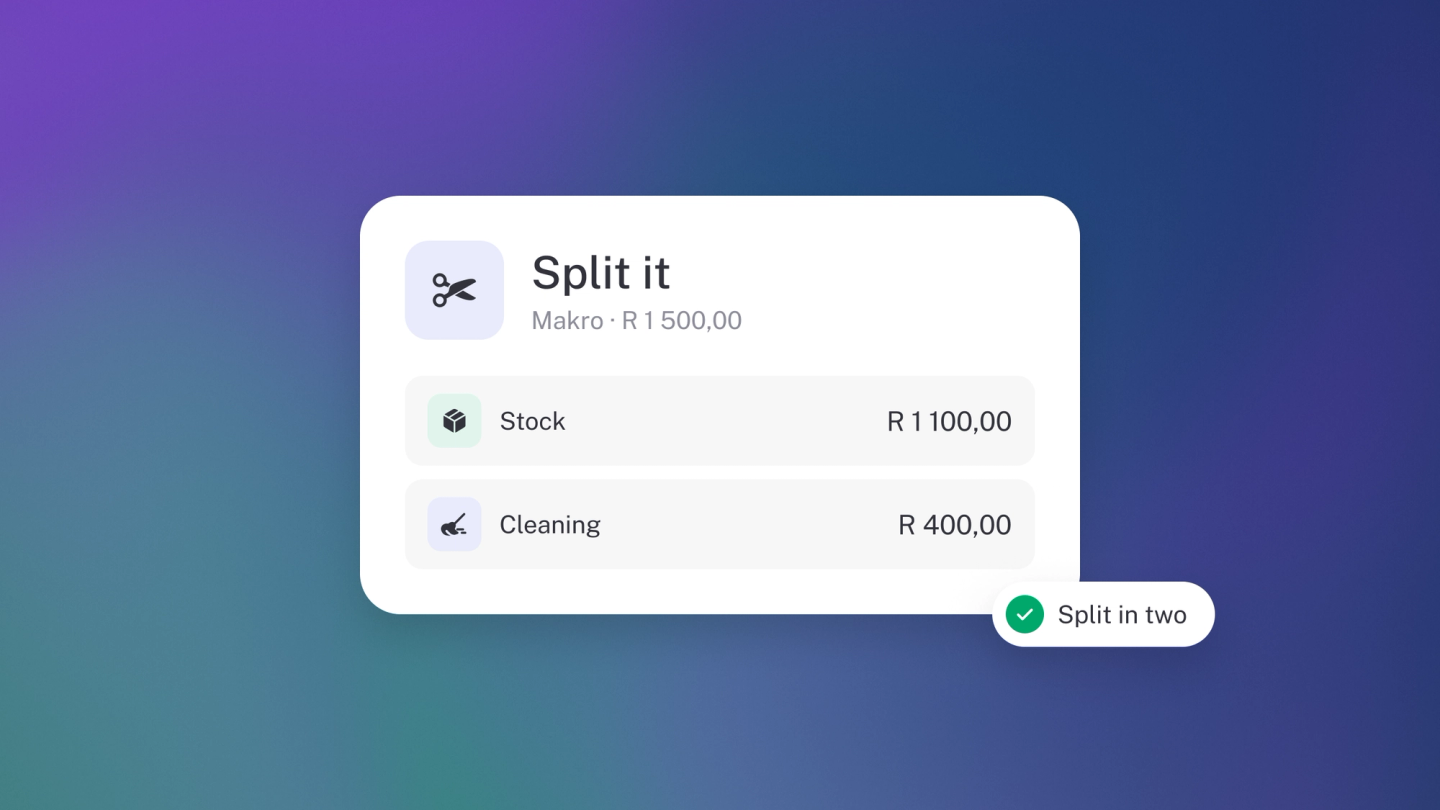
One payment often covers more than one thing — rent and utilities on a single debit order, stock and stationery on one shop slip. Splitting lets each part land in its own category, so your reports tell the truth about both. It takes a minute now and saves you a mystery later.
Split a transaction
- Find the transaction under Expenses for money out, or Sales for money in.
- Click ··· at the end of the row, then Split.
- Under Split 1, pick a category and enter that part of the amount. Do the same under Split 2.
- Need another line? Click Split to add one.
- Check that Outstanding reads zero — that means the whole amount is allocated.
- Save.
The summary at the bottom always shows the Total, how much you have Allocated and what is still Outstanding. Outstanding turns red until it reaches zero.
Add tax to a split line
Each split line takes its own Sales Tax. Add the rate on the line it applies to — you might claim VAT on the stock and not on the rest.
Add a description or note to a line
Each split has its own Description and Notes. Use them: in six months you will not remember what "Split 2" was.
Remove a split line
Open the split and click the trash button on the line you don't want, then adjust the remaining amounts until Outstanding reads zero again and save.
Tip: On Steady Startup and up you can also tag each split line separately, so one shop run can feed two different project reports.