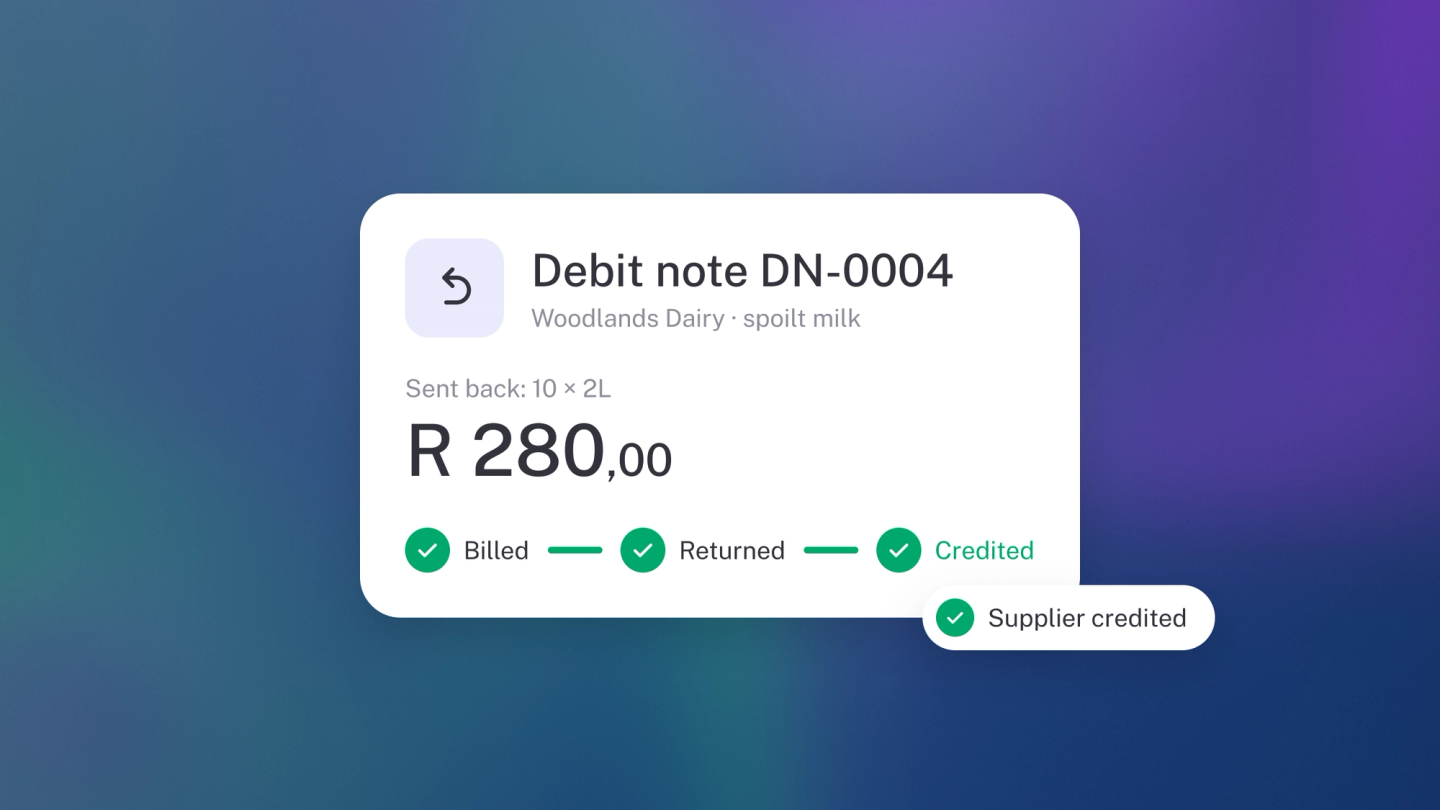
Sent goods back to a supplier? Billed R3,500 for R2,800 worth of stock? A debit note is how you record it — a document that says the supplier owes you money, because goods went back or a bill charged you more than it should have. Raise one and your books reflect what you actually owe today, not what a wrong bill says. It's the supplier-side mirror of a credit note, which does the same job for your customers.
Raise a debit note
- Click Expenses in the sidebar.
- Click Create → Debit Note. (Or press N, then D.)
- Pick the supplier at the top, or add a new one.
- Set the date, and reference the original bill number.
- Click Add item and enter what you are returning or disputing, with quantities and amounts.
- Add Sales Tax to each line so your claimed tax is corrected too.
You can also start from the supplier: go to Suppliers, open them, and click Create → Debit Note.
Send it to your supplier
Click Send, check the address, tweak the message, and send it — or use ··· → Download for a PDF. The Send window also has a private Link and WhatsApp, so you can share it without email, and Preview shows the email before it goes. If you delivered it another way, ··· → Mark as sent keeps your tracking honest.
Link it to a bill
This is the step that keeps your records readable later.
- Open the debit note.
- Click ··· → Bill, or the Bill button on the Purchase panel on the right.
- Pick the bill it relates to.
The linked bill shows on the debit note's Purchase panel, and the debit note shows in the bill's Debit Note section, so the two always read together.
Check the effect on your supplier balance
Open the supplier under Suppliers and check Total outstanding on the left panel.
Tip: Raise the debit note as soon as you send goods back, not when the supplier gets round to acknowledging it. Your books should reflect what you actually owe today.
Related: the customer-side equivalent is Credit notes.