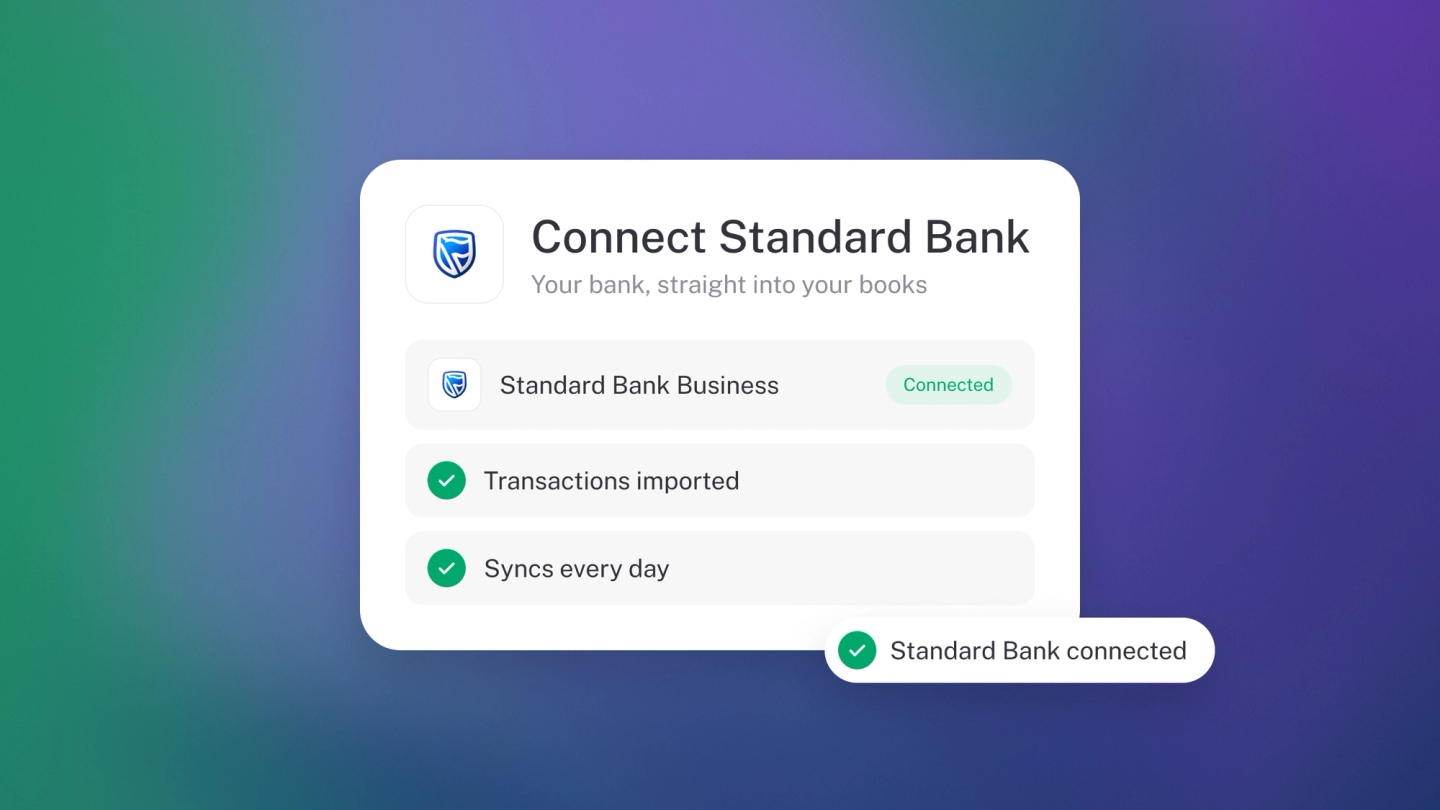
Connect your Standard Bank account and your transactions arrive in stub automatically every day — no downloading statements, no retyping.
Only an owner can add a bank account.
Connect your Standard Bank feed
- Go to Settings → Bank Accounts.
- Click Bank account. The Add bank account window opens.
- Choose Connect.
- Select Standard Bank from the bank list.
- Enter the credentials Standard Bank asks for.
- Open the Standard Bank app on your phone and approve the request.
- Choose the accounts you want to sync.
Standard Bank also appears as a card under Settings → Apps, in the Bank section. Clicking it opens the same flow.
What Standard Bank asks for
- Credentials: your internet banking user ID — your registered email address or card number — and your password.
- Approval: a push notification in the Standard Bank app, or an SMS one-time PIN.
- Business Online: if you bank through Business Online, your operator profile needs third-party statement viewing enabled first — the connection won't succeed without it.
Once you're connected
- Click Sync to pull your transactions in.
- Categorise what arrives — see Categorise bank transactions.
- Turn on background sync — see App settings & background sync.
No feed, or it won't connect?
Drop a PDF statement into Files and stub reads the transactions off it. See Upload files to stub.